Setting the Size of an Element
HTML elements on a page can have a default size, also called the intrinsic size, and they can have a custom size, a size that we set, called the extrinsic size. There are various ways we can set an element's size through CSS.
The width and height properties
We can use the width and height properties to set an element's width and height, respectively.
Fixed-size width and height
We can use the px unit to set a fixed width and height. Example:
.my-class {
    width: 200px;
    height: 100px;
    border: 2px solid black;
}
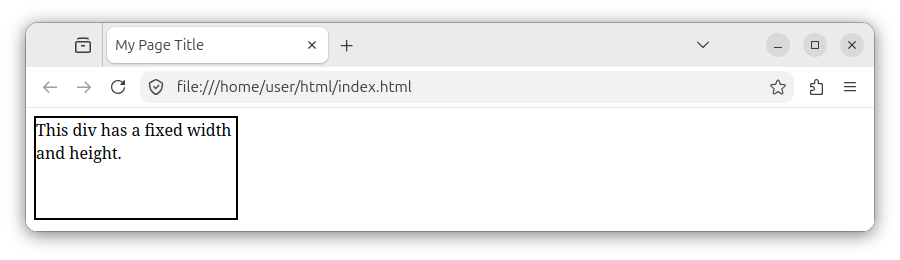
This CSS rule sets the element's width and height in pixels and also adds a thin black border to the element to make it visually stand out on the page.
When we apply this rule to, for example, a div element:
<div class="my-class">This div has a fixed width and height.</div>
We see that the rendered div will have a fixed width of 200 pixels and a fixed height of 100 pixels, as shown in the following image:
Relative width and height in percentages
An element's width and height can also be expressed as a percentage of the container element's width and height:
.my-class {
    width: 50%;
    height: 50%;
    border: 2px solid black;
}

.container {
    width: 400px;
    height: 200px;
    border: 2px solid green;
}
When we apply these CSS rules to the following HTML elements:
<div class="container">
    <div class="my-class">This div's width and height are 50% of the container div's width and height.</div>
</div>
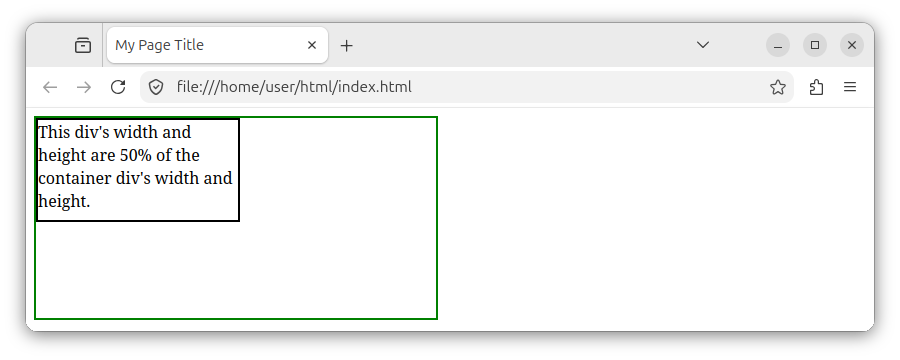
We will see that the outer div with the class of container has a fixed width and height set in pixel units, and the inner div with the class of my-class has its width and height set to 50% of the container div's width and height:
The minimum width and minimum height properties
The min-width property ensures the element will have at least that width, but can grow wider. Example:
.my-class {
    min-width: 200px;
    height: 100px;
    border: 2px solid black;
}
The min-height property ensures the element will have at least that height, but can grow taller, for example, to accommodate its inner content:
.my-class {
    width: 200px;
    min-height: 100px;
    border: 2px solid black;
}
Note: In production, if needed, we can apply the min-width: 100%; declaration to an image so that it scales nicely inside its container.
Dimension units
There are different units we can use when setting an element's width and height. We can use:
- Pixels (
px): For example, to set a fixed width and height. - Percentages (
%): To set a relative width and height. - Viewport width and height units (
vwandvh): To set an element's dimensions relative to the viewport's width and height.
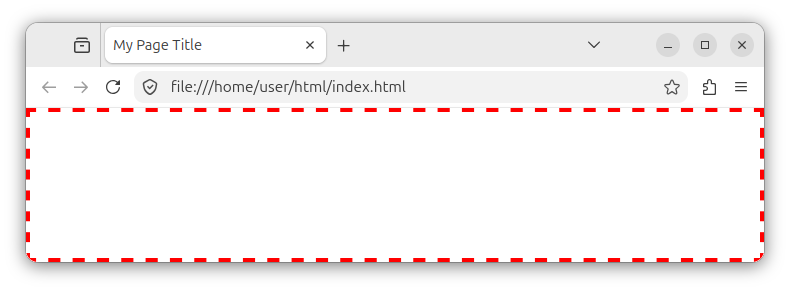
The viewport is the visible area of the rendered page inside our browser's window, without (excluding) the browser's toolbar, menu area, and similar elements:
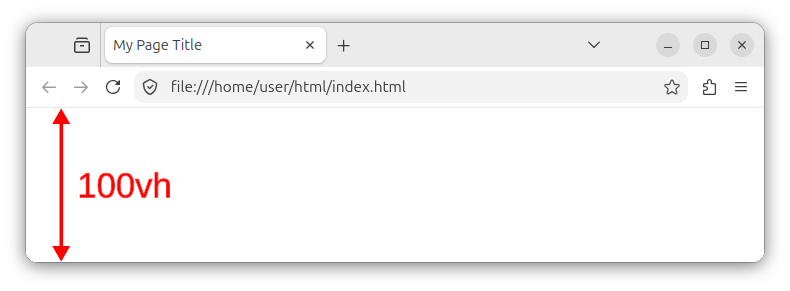
The vh unit represents one percent of the viewport's height: 1vh is equal to 1% of the viewport's height, 10vh is equal to 10% of the viewport's height, and 100vh is equal to the full height of the viewport:
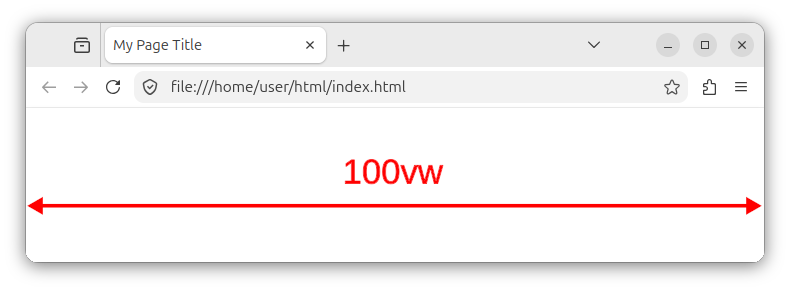
The vw unit represents one percent of the viewport's width; 1vw is equal to 1% of the viewport's width, and the value of 100vw represents the full viewport's width:
The width and height properties work on almost all elements, but they do not have an effect on inline elements, such as <a>, <span>, <code> and similar inline elements. If we want to apply width and height to these inline elements, we need to set their display value to either inline-block or block. Example:
a {
    display: inline-block;
    width: 100px;
    height: 25px;
}
Summary
We can use the width and height CSS properties to set an element's dimensions using either fixed-size or relative-size units.


