DOM and API
In this article, we explain how a browser represents our HTML document as a DOM tree structure and how it provides interfaces that allow us to manipulate elements in that tree.
The Document Object Model - DOM
When a browser parses our HTML page, it creates an internal representation of our HTML document called the Document Object Model, or DOM for short. This DOM representation is in the form of a tree, where each HTML element is represented as a node in the tree.
The DOM represents an interface between the HTML document and a scripting language, most commonly JavaScript. For example, the following HTML page:
<!DOCTYPE html>
<html lang="en">
<head>
    <meta charset="UTF-8">
    <meta name="viewport" content="width=device-width, initial-scale=1.0">
    <title>My Page Title</title>
</head>
<body>

</body>
</html>
Can be visualized as the following DOM tree:
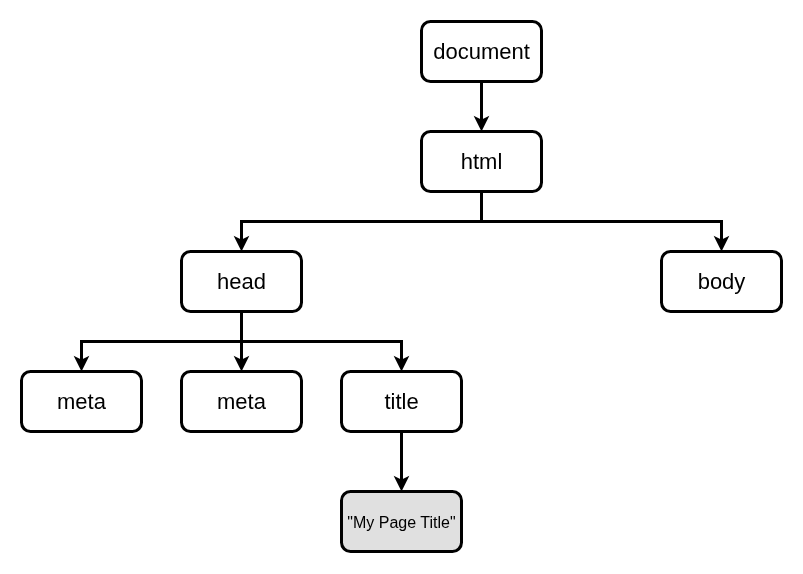
Each element in our HTML page is a separate node in the DOM tree. Each node is an object that represents one HTML element. The object stores all attributes as properties. If an element has a textual value, that value is represented as a text subnode.
If our page body has several elements, such as <h1> and <p> elements as in the following code snippet:
<!DOCTYPE html>
<html lang="en">
<head>
    <meta charset="UTF-8">
    <meta name="viewport" content="width=device-width, initial-scale=1.0">
    <title>My Page Title</title>
</head>
<body>
    <h1>Heading text</h1>
    <p>Paragraph text.</p>
</body>
</html>
Then the DOM tree can be visualized as in the following image:
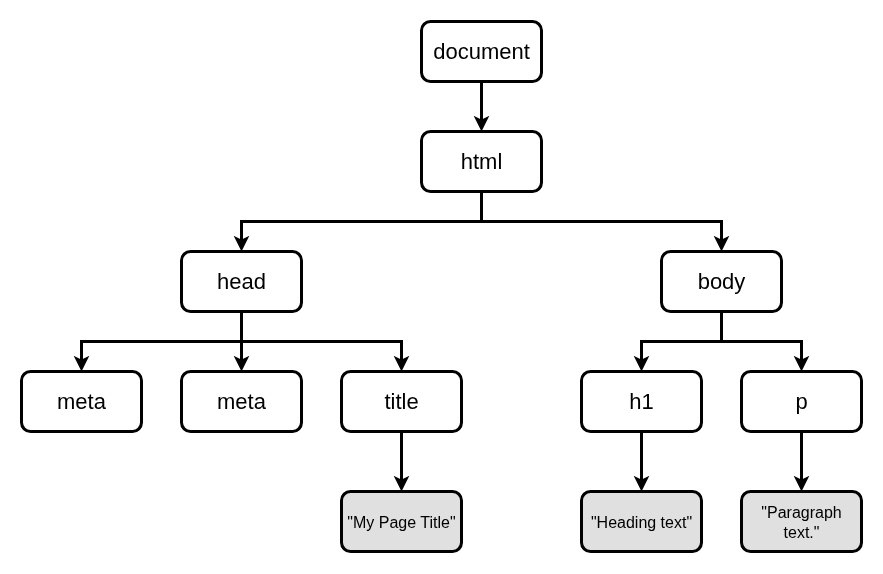
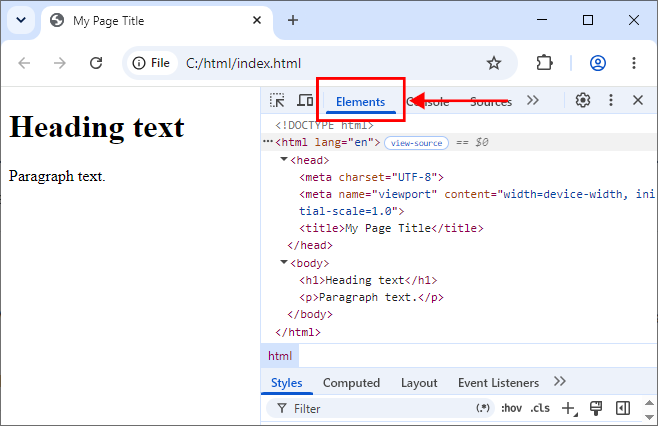
To see the textual representation of the DOM tree in your browser, press F12 and navigate to the Elements tab in Chrome:
Or the Inspector tab in Firefox:
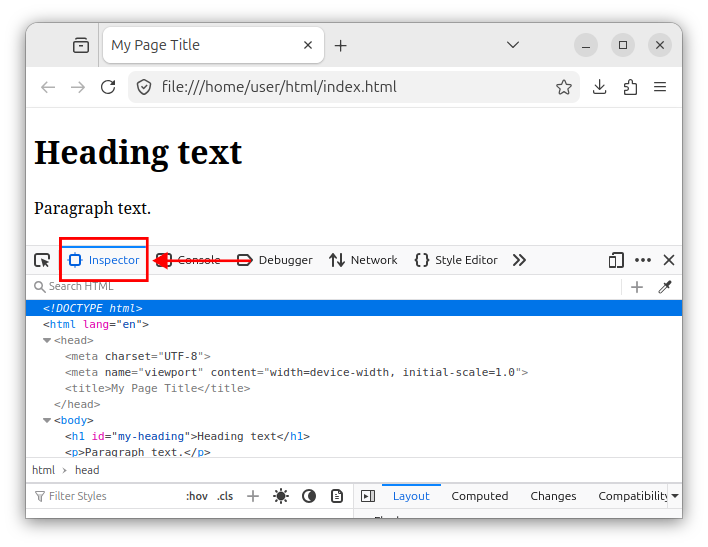
Alternatively, right-click on the page and choose Inspect. These inspection tools are called Developer tools and are built into web browsers. These tools allow us to inspect the document's elements and source code, debug JavaScript code, and more.
API
To manipulate DOM elements using a scripting language like JavaScript, we utilize the Application Programming Interfaces, or APIs for short.
Interfaces
The browser provides many interfaces (with predefined names) that represent various objects in a DOM tree. For example, the Document interface represents the entire web page, the HTMLElement interface represents any HTML element in our page/tree, and the more specific HTMLImageElement interface represents an HTML <img> element and so on. Some other, more specific interfaces are:
HTMLButtonElementinterface - represents a<button>element.HTMLFormElementinterface - represents a<form>element.HTMLInputElementinterface - represents an<input>element.
Each interface has several methods, properties, and events that allow us to manipulate the object's values and attributes and react to certain events. These interfaces are mainly used inside JavaScript code.
Objects, methods, and properties
Interfaces are types of data, and an instance of an interface is called an object. We create an object of a particular interface type and then invoke various methods and properties or target specific events that will execute some code.
Let us create a simple HTML page that has heading and paragraph elements:
<!DOCTYPE html>
<html lang="en">
<head>
    <meta charset="UTF-8">
    <meta name="viewport" content="width=device-width, initial-scale=1.0">
    <title>My Page Title</title>
</head>
<body>
    <h1 id="my-heading">Heading text</h1>
    <p id="my-paragraph">Paragraph text.</p>
</body>
</html>
Open this file in a web browser and start the Developer Tools by pressing F12 or Ctrl + Shift + I. Navigate to the Console window which allows us to execute and evaluate various macro commands and JavaScript code.
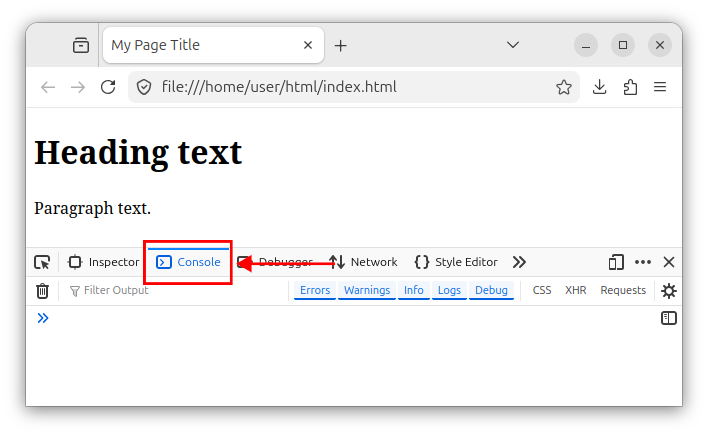
When our page finishes loading, the browser creates a global object named document. This object is an instance of the Document interface mentioned earlier.
In the Console window, when we type document, followed by a dot ., we see that the document object holds a plethora of functions, properties, and events, all of which are declared inside the Document interface/type.
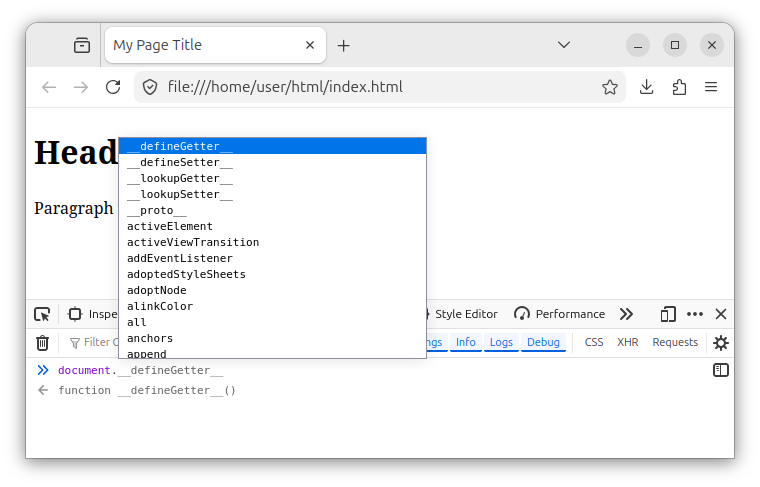
For example, to list all the child elements on our page, we execute the following command:
document.querySelectorAll('*');
We use the document object to invoke the querySelectorAll('*') method which returns a NodeList collection with all the child elements in our HTML document.
Next, we can obtain a handle of the <h1> element, using the document's getElementById() method:
const myElement = document.getElementById('my-heading');
This line of code obtains a handle (a reference) to an element whose id attribute is equal to my-heading and stores that handle in an object we named myElement. In our case, it is a reference to the <h1> element on our page and that element is now represented through the myElement object.
Using this document object, we invoke the getElementById() method which, in this case, returns an instance of the HTMLHeadingElement type/interface. The myElement object is an instance of a HTMLHeadingElement interface.
Behind the scenes, interfaces inherit from other interfaces. For example, the HTMLHeadingElement interface inherits (is derived) from an HTMLElement interface, which in turn inherits from a more general Element interface. The inheritance tree can be visualized using the following picture:

Next, we can change the text of our <h1> element by executing the following command in the Console window:
myElement.textContent = "New heading text";
This line of code sets the new text for our <h1> element using the textContent property. This property is invoked using the myElement object, which represents a <h1> element on our page. After executing this statement, we see the heading text in our browser has changed.
All these statements are usually a part of some myscript.js JavaScript file:
const myElement = document.getElementById('my-heading');
myElement.textContent = "New heading text";
Which then gets included and executed inside our HTML page:
<head>
    <script src="myscript.js" defer></script>
</head>
The defer attribute here states that the script will be executed only after the document has been evaluated/parsed.
Note: For more information on including the JavaScript files into our HTML document, check out our Including JavaScript in an HTML Page tutorial.
Summary
In summary, the web browser creates an internal representation of our HTML page in the form of a tree. This tree is called the Document Object Model and represents the entire HTML page as a tree of nodes. Each node is an object that represents an individual HTML element on our page. The browser then provides a number of different named interfaces that allow us to modify the objects in the DOM tree, usually using JavaScript.


