Other HTML Elements
In this article, we will explain several other common HTML elements that can be used to:
- Represent computer source code.
- Create emphasized text.
- Create inline containers using the
<span>element. - Escape special characters and use HTML entities instead.
Representing source code
The <code> element can be used to represent inline source code, and the <pre><code> combination of elements can be used to represent a formatted block of several source code statements.
Inline source code - the <code> element
To represent an inline computer source code snippet, we wrap the source code snippet with the <code> element. Example:
<code>someFunctionCall();</code>
We can place that <code> element within, for example, a paragraph element:
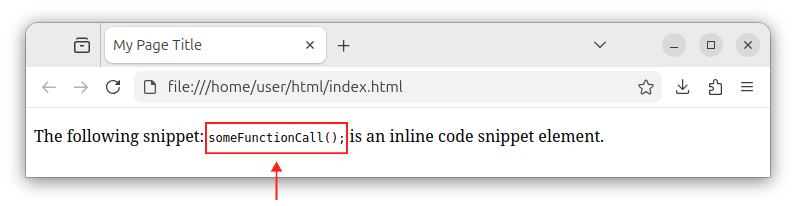
<p>The following snippet: <code>someFunctionCall();</code> is an inline code snippet element.</p>
The <code> element wraps the source code snippet that will be displayed as an inline, monospaced text representing a short source code snippet of some kind. When rendered in a browser, the above code will look similar to the following image:
Note: If needed, a paragraph can also hold multiple inline <code> elements.
Source code blocks - the <pre><code> elements
To represent a source code block, we place the <code> element that contains the source code inside the <pre> element. The general syntax for representing a code block is:
<pre><code><!-- Place the source code in here -->
<!-- And here -->
<!-- And here -->
</code></pre>
The following is an example of a source code block with several statements placed inside the <pre> and <code> elements:
<pre><code>someFunctionCall();
otherFunctionCall();
if (a > b) {
    // more statements here
}
</code></pre>
The <pre> element represents the so-called preformatted text. Any text placed inside the <pre> element will be written exactly as it is, with preserved multiple spaces, new-line characters and indentations.
When we place the <code> element inside the <pre> element, the formatting of that source code block is preserved and rendered accurately in a browser:
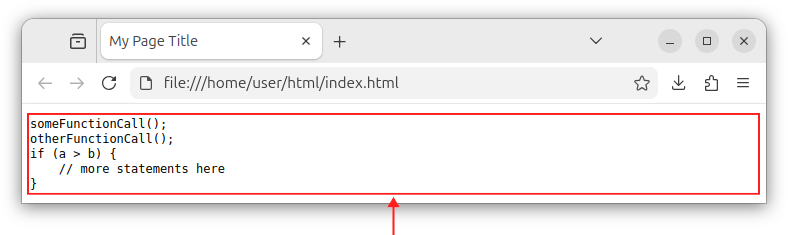
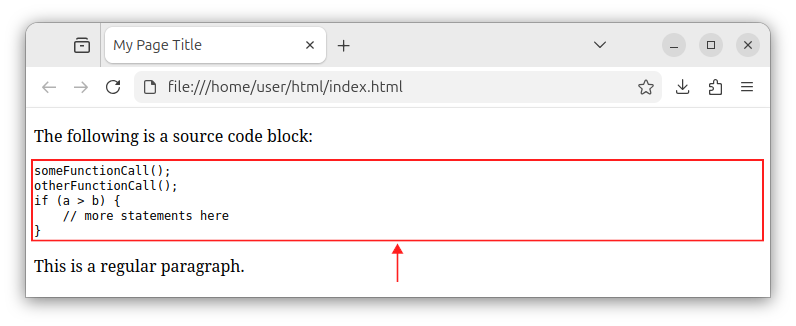
Note: The indentation of the <pre> block itself is a bit different compared to other HTML elements on our page. This is because the <pre> element renders the text as-is, with all the indentations, new-lines, and spaces preserved. To avoid the extra indentation, we pull the <pre> element and all its inner content all the way to the left in our HTML page/code:
    <p>The following is a source code block:</p>
<pre><code>someFunctionCall();
otherFunctionCall();
if (a > b) {
    // more statements here
}
</code></pre>
    <p>This is a regular paragraph.</p>
When rendered in a browser, the above code shows as:
Escaped characters - HTML entities
Certain symbols in our HTML code, especially when part of the element's content or an attribute value, cannot be represented by their literal values, but instead should be represented by their matching escaped versions, the so-called HTML entities.
If we want to represent the <, >, and & characters in our page as part of some element's content or attribute value, we must use their escaped versions instead. We should:
- Replace the
<character with the<HTML entity. - Replace the
>character with the>HTML entity. - Replace the
&character with the&HTML entity. - Replace the double-quote character
"with its escaped version of".
If we did not replace these characters with their escaped versions, the browser might interpret the literal mentions of the <, >, and & characters as parts of the tag or start of an entity, which could break the page. That is why we must replace them with their <, >, and & escaped versions, respectively.
These escaped character sequences are also referred to as "HTML entities", "escaped characters" and "character references".
While the above characters should be replaced, there are other special characters that, in most cases, usually can (but do not always have to) be replaced.
A single quote (the apostrophe) character ' - can be replaced with the ' escape character, especially when it appears inside the single quoted attribute value. The following attribute value:
'This is some 'quoted text'.'
Must be represented with the following, escaped version:
'This is some 'quoted text'.'
A double quote character " - can be replaced with the " escape character. When this character is found inside another set of double quotes:
"This is some "quoted text"."
It must be replaced with its escaped version:
"This is some "quoted text"."
There are also symbols that can be represented using their HTML entity counterparts. Some of them are:
- The copy symbol
©, can be escaped with the©entity. - The en dash symbol
-, can be replaced with the–entity. - The em dash symbol
—, can be replaced with the—HTML entity.
Example
If we want to represent the following code snippet in our HTML document:
<code><element_name>This element displays a & symbol.</element_name></code>
We need to replace the <, &, >, and " characters with their escaped equivalents:
<code><element_name>This element displays a & symbol.</element_name></code>
When to use the literal symbols and when to use HTML entities?
When writing the HTML code and creating elements and attributes for our page, we use regular, literal values of <, &, and >, not their escaped versions. Example:
<a href="https://www.example.com">Click here</a>
But, when those characters need to appear as part of the element's content, or attribute's value, then we escape them and use HTML entities instead. For example, if the href attribute points to a URL that contains an ampersand & symbol, and the link text/content contains the < symbol, then those occurrences should be escaped:
<a href="https://www.example.com?param1=value1&param2=value2">Click here if param1 < param2</a>
For example, if a paragraph's content wants to mention the less-than, ampersand and greater-than symbols as in:
<p>This paragraph text mentions the <, & and > symbols.</p>
It should use the escaped versions instead:
<p>This paragraph text mentions the <, & and > symbols.</p>
If those symbols appear in an attribute, for example inside the metadata description:
<meta name="description" content="This meta description text mentions the <, & and > symbols.">
Then, they should be properly escaped with:
<meta name="description" content="This meta description text mentions the <, & and > symbols.">
Note: Strictly speaking, the > symbol does not have to be explicitly escaped, but in production code, it almost always is.
The <strong> element - the text of strong importance
The <strong> element wraps the text that represents a text of strong importance. The <strong> element is usually found inside a <p> element:
<p>In this paragraph, <strong>this particular text</strong> is of strong importance.</p>
The browser renders the strong element text as a text with bold weight:
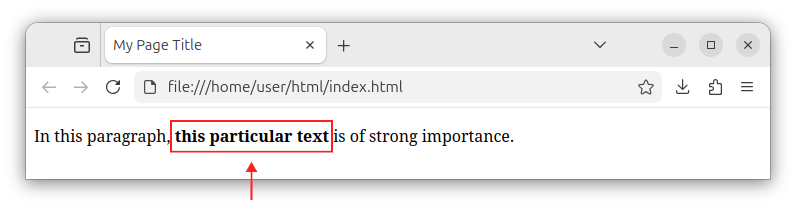
Although the text inside this element is rendered as a bold text by default, the <strong> element is primarily meant to semantically represent some important part of the sentence. It was not meant to be used only to visually represent the bold text. For that sole purpose, we can use CSS styling instead.
The <em> element - the emphasized text
The <em> element can be used to wrap the text we want emphasized. It is often used inside a paragraph to wrap the portion of the text that should be emphasized. Example:
<p>In this paragraph, <em>this text</em> is emphasized.</p>
By default, the browser renders the text inside the <em> element as italicized text:
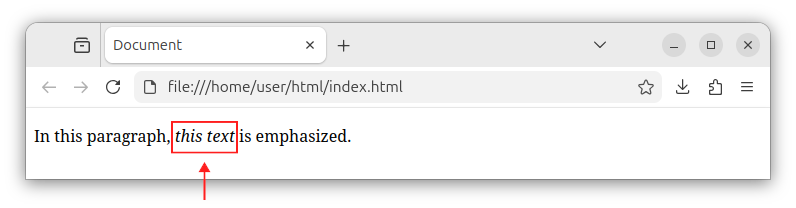
The role of the <em> element is to semantically represent the emphasized text. Although the text is rendered as italicized text by default, we should not use the <em> element only to represent the text as italic. If that was our only goal, we should use CSS styling instead.
The <br> element - the line break
To create a line break in our text, we place the self-closing <br> element at the needed position, usually, somewhere inside the paragraph text. Example:
<p>In this paragraph<br>
This text starts on a new line.
</p>
The text that follows the line break element starts on a new line.
To introduce multiple line breaks in our text, we create multiple <br> elements at required locations:
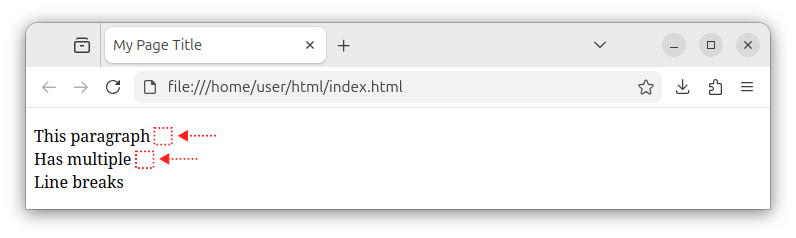
<p>This paragraph<br>
Has multiple<br>
Line breaks
</p>
Now, our paragraph shows a text with line-breaks at particular locations:
Note: The line break should not be used to represent or divide multiple paragraphs. Line breaks are usually used to visually introduce line breaks inside one paragraph that represents an address, song lyrics text, and similar.
The inline container - the <span> element
When we want to differently style a part of some element's content, we can wrap that part inside the <span> element.
The <span> element represents an inline container for the content that is part of some outer element's content. Example:
<h1>This <span>inline span text</span> is differently styled</h1>
Now, we can differently style the <span> element, for example using the following CSS rule:
h1 span {
    color: green;
}
Example
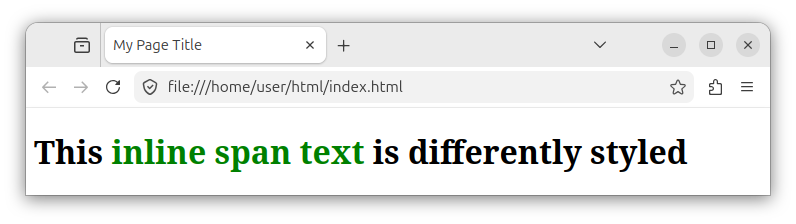
The following is a complete web page that shows a differently styled <span> element which is part of the <h1> header:
<!DOCTYPE html>
<html lang="en">
<head>
    <meta charset="UTF-8">
    <meta name="viewport" content="width=device-width, initial-scale=1.0">
    <title>My Page Title</title>
    <style>
        h1 span {
            color: green;
        }
    </style>
</head>

<body>
<h1>This <span>inline span text</span> is differently styled</h1>

</body>
</html>
The above page shows the inline <span> element that is differently styled compared to the rest of the surrounding h1 text: