HTML Lists
Lists are HTML elements that represent the collection of list items. Lists are wrappers around one or more list items. To represent a list in HTML, we use:
- Unordered lists.
- Ordered lists.
- Description lists.
In this tutorial, we will explain two widely used list types: unordered and ordered lists.
Unordered lists
An unordered list, represented through the <ul> tag, is a list whose child elements are list items listed in no particular order. The list items are represented through the <li> tag.
The syntax for an unordered list
The unordered list starts with an <ul> tag and ends with the </ul> closing tag. Inside the unordered list, we define one or more list items using the <li> elements. The general syntax is:
<ul>
    <li>The first list item.</li>
    <li>The second list item.</li>
    <li>The third list item.</li>
</ul>
This unordered list specifies three list items. The browser renders the unordered list items with a bullet in front of every list item's text or content.
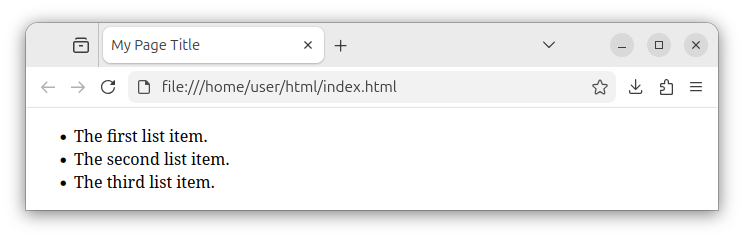
Note: If required, the bullet symbols can be removed altogether by applying the list-style-type: none; CSS rule to our unordered list.
List items
The list item represents a single item in an encompassing list—in our case, inside an unordered list. The list item starts with the <li> opening tag, has content (in our case, simple text), and ends with the </li> closing tag.
<li>List item text (or other content/HTML elements)</li>
Important: List items must be wrapped with (placed inside) <ul> or <ol> elements. They cannot stand on their own in an HTML document.
Example: a page with one unordered list
The following source code is a full HTML page that has a single unordered list with several list items:
<!DOCTYPE html>
<html lang="en">
<head>
    <meta charset="UTF-8">
    <meta name="viewport" content="width=device-width, initial-scale=1.0">
    <title>My Page Title</title>
</head>
<body>
    <ul>
        <li>The first list item.</li>
        <li>The second list item.</li>
        <li>The third list item.</li>
    </ul>
</body>
</html>
Example: a page with multiple unordered lists
We can also have multiple unordered lists on our page by specifying multiple <ul> elements:
<!DOCTYPE html>
<html lang="en">
<head>
    <meta charset="UTF-8">
    <meta name="viewport" content="width=device-width, initial-scale=1.0">
    <title>My Page Title</title>
</head>
<body>
    <!-- The first unordered list -->
    <ul>
        <li>The first list item.</li>
        <li>The second list item.</li>
        <li>The third list item.</li>
    </ul>

    <!-- The second unordered list -->
    <ul>
        <li>The first item in a second list.</li>
        <li>The second item in a second list.</li>
        <li>The third item in a second list.</li>
    </ul>
</body>
</html>
The browser renders the above code as two separate list containers, each with its own set of list items:
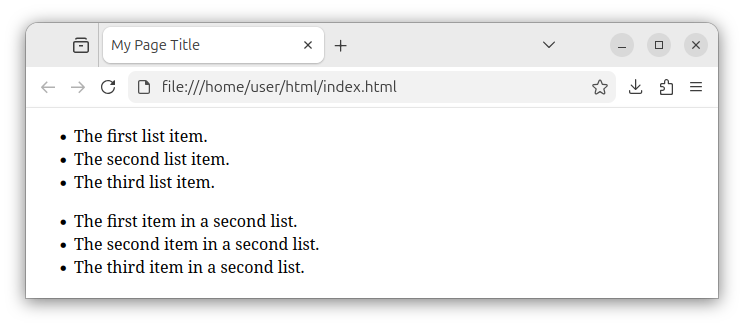
In summary, an unordered list element <ul> serves as a wrapper around multiple list items <li>. The items can be listed in no particular order, but will be rendered in the same order as they appear inside the HTML document. The list items must be placed inside the <ul> element (or <ol>, as we will see later on), and cannot stand on their own in an HTML document. The only child elements of an unordered list are list items <li>; no other HTML element can be a direct child of an unordered list. On the other hand, list items themselves can have any HTML element as a child element.
Ordered lists
An ordered list is an HTML element that acts as a container for child list items, where each item is displayed with a number in front of it.
The syntax for an ordered list
The ordered list is represented through the <ol> element. It starts with the <ol> opening tag, followed by one or more list items represented through the <li> element, and ends with the </ol> closing tag. Example:
<ol>
    <li>The first list item.</li>
    <li>The second list item.</li>
    <li>The third list item.</li>
</ol>
When a browser renders the list items inside an ordered list, each list item starts with a number.
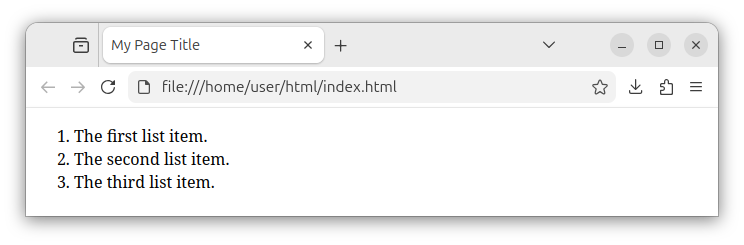
Numbers are sorted in ascending order, from low to high by default. The first list item's number starts from 1 by default and each subsequent list item number is increased by one.
Example of an HTML page with an ordered list
The following HTML snippet is an example of an HTML document that displays an ordered list with three list items.
<!DOCTYPE html>
<html lang="en">
<head>
    <meta charset="UTF-8">
    <meta name="viewport" content="width=device-width, initial-scale=1.0">
    <title>My Page Title</title>
</head>
<body>
    <ol>
        <li>The first list item.</li>
        <li>The second list item.</li>
        <li>The third list item.</li>
    </ol>
</body>
</html>
Each list item is prefixed with a number and a dot symbol. By default, the numbers start with 1 for the first list item and each next list item has a number incremented by one.
Important: We only set the text for the list item; we do not type in the numbers manually. The numbers are automatically displayed by a browser when it renders an ordered list element.
Reversed ordered list
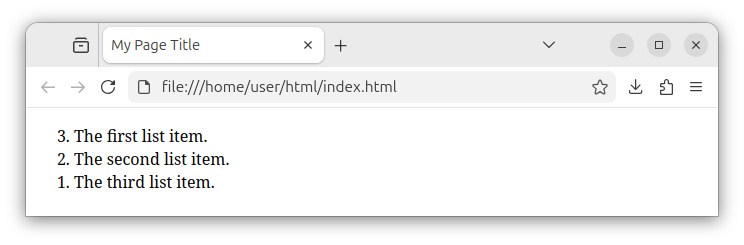
To reverse the order of numbers so that the first list item starts with the highest number, we include the reversed attribute inside the <ol> opening tag. Example:
<ol reversed>
    <li>The first list item.</li>
    <li>The second list item.</li>
    <li>The third list item.</li>
</ol>
The above reversed ordered list is rendered as follows:
The ordered list number types
By default, the numbered list items start with Arabic digits (1, 2, 3). To change the digits to letters or Roman digits, we use the type attribute with specific values.
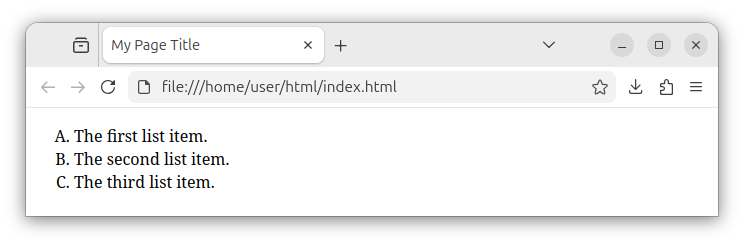
To set the digits to uppercase letters, so that each list item starts with an uppercase letter instead, we set the type attribute to the value of uppercase A:
<ol type="A">
    <li>The first list item.</li>
    <li>The second list item.</li>
    <li>The third list item.</li>
</ol>
The above code, when rendered by a browser, looks like the following:
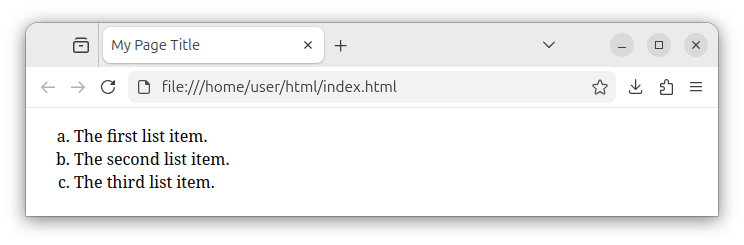
To set the numbering to lowercase letters, we set the type attribute to the value of lowercase a:
<ol type="a">
    <li>The first list item.</li>
    <li>The second list item.</li>
    <li>The third list item.</li>
</ol>
The digits are now lowercase letters starting with a:
To set the ordered list numbering to Roman letters, we use the lowercase i value:
<ol type="i">
    <li>The first list item.</li>
    <li>The second list item.</li>
    <li>The third list item.</li>
</ol>
Or the uppercase I value for the type attribute:
<ol type="I">
    <li>The first list item.</li>
    <li>The second list item.</li>
    <li>The third list item.</li>
</ol>
Important: The only allowed child elements for an ordered list <ol> are list items represented through the <li> elements.
Ordered lists summary
In summary, ordered lists are HTML elements that are wrappers around list items in cases where the order of list items matters. When rendered in a browser, each list item starts with a number (or a letter, if we used a type attribute). The numbers are ordered from low to high and each subsequent list item gets prefixed with a number increased by one.
Which list should you choose?
If we only want to list several items on our page and do not want numbered list items, we use an unordered list. If we want to list several, numbered list items, and we want numbers displayed in front of every list item in an ascending or descending order, we use the ordered list.
When building a sidebar with links, most of the time, you want to use the unordered list for a sidebar, as you do not want increasing sequences of numbers in front of list items. Although called unordered, the list items within an unordered list will still be displayed in exactly the same order in which they are specified in the HTML code. In production, the bullet characters can be removed using CSS.
Lists with links
The following HTML snippet is an example of an unordered list that represents a list of links to HTML files:
<ul>
    <li><a href="index.html">Home</a></li>
    <li><a href="about.html">About</a></li>
    <li><a href="contact.html">Contact</a></li>
</ul>
Or a list of full URLs/web routes:
<ul>
    <li><a href="https://www.example.com/">Home</a></li>
    <li><a href="https://www.example.com/about">About</a></li>
    <li><a href="https://www.example.com/contact">Contact</a></li>
</ul>
This code can be used as a starting point when building a sidebar navigation pane.
Nested lists
We can nest a list inside another list by placing the inner list inside one of the outer list's items:
<ul>
    <li>Chapter 1</li>
    <li>Chapter 2
        <ul>
            <li>Subchapter 2.1</li>
            <li>Subchapter 2.2</li>
        </ul>
    </li>
    <li>Chapter 3</li>
</ul>
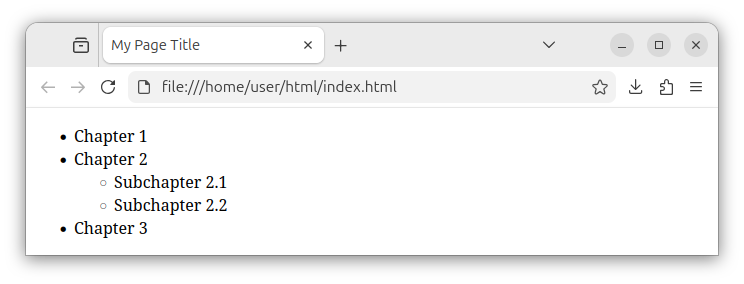
The above code shows one unordered outer list with three list items. Inside the second list item, we placed another, inner unordered list with its own list items. This way, we can create a list within a list. This is often the case when building a sidebar navigation bar that points to chapters and subchapters.
By default, the browser renders the above nested list as in the following image:
Summary
Lists are HTML elements that are wrappers around list item elements. Unordered lists show list items with bullets in front of each list item. Ordered lists show list items which will be rendered with incrementing numbers in front of them.


