Tables
An HTML table is an element that displays tabular data using cells, and each cell belongs to a certain row and a column.
The table element
An HTML table is represented using the <table> element. The general syntax is:
<table>
    <!-- Table content goes in here -->
</table>
The table starts with the <table> opening tag and ends with the </table> closing tag. We place table rows, headings and cells in between these two tags. Currently, our table has no data, no rows, and no cells.
Table cells
A table uses cells to display data. Table cells are represented through the <td> element. The following HTML code snippet represents a table with a single cell:
<table>
    <td>This is the first cell</td>
</table>
To represent a table with two cells, we add another <td> element:
<table>
    <td>This is the first cell.</td>
    <td>This is the second cell.</td>
</table>
The browser renders this code as a table that displays both cells on the same line, one after the other:
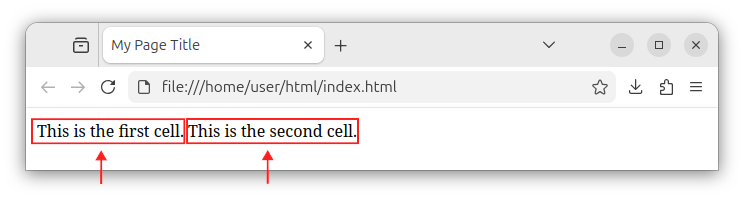
The <td> element represents a single table cell, and the td wording stands for table data.
Table rows
All cells that visually belong to the same table row should be wrapped with the row element. For this purpose, we use the <tr> element to represent a table row. We wrap all the cells that belong to the same row with a <tr> element. To display a table that has one row, and that row has three cells, we write:
<table>
    <tr>
        <td>Cell 1.1.</td>
        <td>Cell 1.2.</td>
        <td>Cell 1.3.</td>
    </tr>
</table>
The table row element starts with an opening <tr> tag, can have zero or more child cell elements and ends with the closing </tr> tag.
To represent an HTML table that has two rows, we insert two <tr> elements into a table:
<table>
    <!-- First table row -->
    <tr>
        <td>Cell 1.1.</td>
        <td>Cell 1.2.</td>
        <td>Cell 1.3.</td>
    </tr>

    <!-- Second table row -->
    <tr>
        <td>Cell 2.1.</td>
        <td>Cell 2.2.</td>
        <td>Cell 2.3.</td>
    </tr>
</table>
The above code defines a table with two rows, and each row contains three cells. When rendered in a browser, the above table looks like the following:
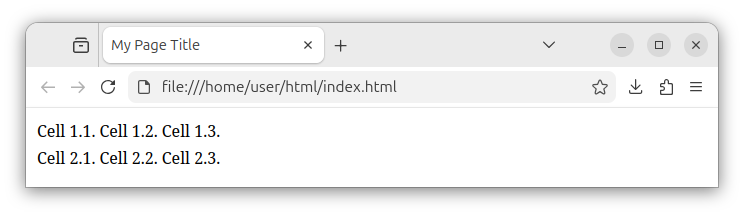
Table headers
We use the <th> element to represent a table row header or a table column header value. The table header element both semantically and visually represents a table header value - a table header title. The table header element can be used as a row header or a column header.
Column headers
Multiple <th> elements that can be used to represent column headers. To display a table whose first row contains only (column) header elements, and the second row represents the data, we write:
<table>
    <!-- A row with table (column) headers -->
    <tr>
        <th>Column 1 Title</th>
        <th>Column 2 Title</th>
        <th>Column 3 Title</th>
    </tr>

    <!-- A row with data -->
    <tr>
        <td>Cell 2.1.</td>
        <td>Cell 2.2.</td>
        <td>Cell 2.3.</td>
    </tr>
</table>
This code displays a table whose first row contains only table header elements, it contains only <th> elements. Each <th> element serves as a column header, a column title. The second table row contains regular data placed inside the <td> cell elements. When rendered in a browser, this table looks like the following:
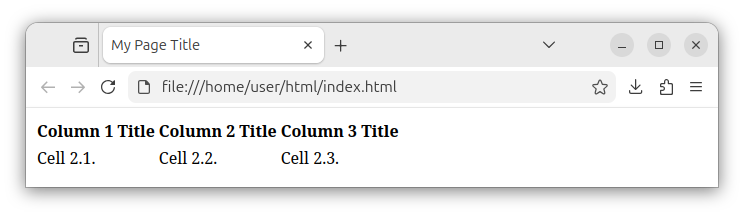
By default, the browser renders the <th> header cells using a bold text.
Row headers
The <th> element can also be used to represent row header cells, row header titles. To define a table that has two rows and each row has a header element, we write:
<table>
    <!-- A row with the row header and two data cells -->
    <tr>
        <th>Row 1 Title</th><!-- Row header -->
        <td>Cell 1.1.</td>
        <td>Cell 1.2.</td>
    </tr>

    <!-- A row with the row header and two data cells -->
    <tr>
        <th>Row 2 Title</th><!-- Row header -->
        <td>Cell 2.1.</td>
        <td>Cell 2.2.</td>
    </tr>
</table>
The above code shows a table with two rows. Both rows have three child elements. The first child element in each row is a table heading element - the <th> cell. This header element now serves as a row header, as a row title. The remaining two child elements in each row are regular <td> cells containing some table data.
When rendered in a browser, the above code looks as follows:
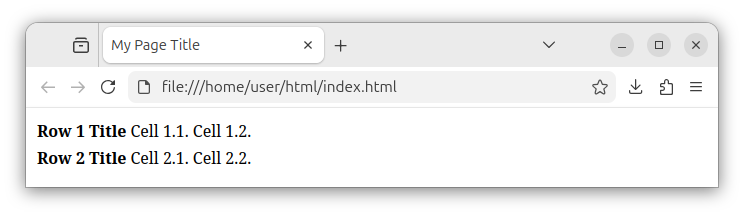
As we can see, the actual placement position of the <th> element within a row specifies whether it is used as a column header or a row header. If the entire table row contains only <th> elements, then, those <th> elements are column headers. If each row contains only one <th> element (followed by several regular <td> cells), then those <th> elements are meant to represent row headers.
The scope attribute for a <th> cell
We can also explicitly specify whether the <th> cell represents a row header or a column header by adding the scope attribute to a <th> cell.
To specify that a <th> cell represents the row header (for the row in which it was specified), we add the scope attribute with the value of row to the header cell. Example:
<table>
    <!-- First row -->
    <tr>
        <th scope="row">Row 1 Title</th><!-- Row header -->
        <td>Cell 1.1.</td>
        <td>Cell 1.2.</td>
    </tr>

    <!-- Second row -->
    <tr>
        <th scope="row">Row 2 Title</th><!-- Row header -->
        <td>Cell 2.1.</td>
        <td>Cell 2.2.</td>
    </tr>
</table>
To specify that a <th> cell represents a column header, we add the scope="column" attribute to the header cell. Example:
<table>
    <!-- A row with column headers -->
    <tr>
        <th scope="column">Column 1 Title</th>
        <th scope="column">Column 2 Title</th>
        <th scope="column">Column 3 Title</th>
    </tr>

    <!-- A row with data -->
    <tr>
        <td>Cell 2.1.</td>
        <td>Cell 2.2.</td>
        <td>Cell 2.3.</td>
    </tr>
</table>
The scope attribute is not required per se as the header role (whether the <th> cell represents a column header or a row header) is automatically deduced. Nevertheless, the scope attribute is useful as it carries semantic meaning and explicitly specifies the relationship between the table header cells (<th>) and table data cells (<td>). When that relationship is read by screen readers, it improves overall accessibility.
Column and row headers example
To create a table that has both column and row headers, we place the <th> elements in appropriate positions. To create a three-by-three table that has both column and row headers plus data, we write:
<table>
    <!-- A row with an empty cell and two column headers -->
    <tr>
        <td></td><!-- An empty cell -->
        <th>Column 1 Title</th><!-- Column header -->
        <th>Column 2 Title</th><!-- Column header -->
    </tr>

    <!-- A row with the row header and two data cells -->
    <tr>
        <th>Row 1 Title</th><!-- Row header -->
        <td>Cell 1.1.</td>
        <td>Cell 1.2.</td>
    </tr>

    <!-- A row with the row header and two data cells -->
    <tr>
        <th>Row 2 Title</th><!-- Row header -->
        <td>Cell 2.1.</td>
        <td>Cell 2.2.</td>
    </tr>
</table>
The above code displays a table with three rows and three columns in total.
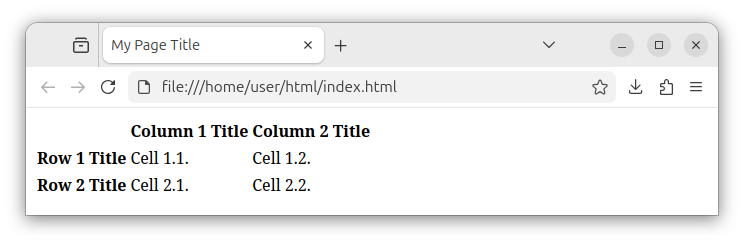
The first row contains an empty cell followed by two column header cells. The second and third table rows contain one row header cell and two data cells each. This way, we have a table that has both column and row headers and contains some regular data.
Now, we can modify the above code and add appropriate scope attribute to all header cells:
<table>
    <!-- A row with an empty cell and two column headers -->
    <tr>
        <td></td><!-- An empty cell -->
        <th scope="col">Column 1 Title</th><!-- Column header -->
        <th scope="col">Column 2 Title</th><!-- Column header -->
    </tr>

    <!-- A row with the row header and two data cells -->
    <tr>
        <th scope="row">Row 1 Title</th><!-- Row header -->
        <td>Cell 1.1.</td>
        <td>Cell 1.2.</td>
    </tr>

    <!-- A row with the row header and two data cells -->
    <tr>
        <th scope="row">Row 2 Title</th><!-- Row header -->
        <td>Cell 2.1.</td>
        <td>Cell 2.2.</td>
    </tr>
</table>
We added the scope attribute with appropriate values to all our <th> cells to semantically indicate whether the header cell is a column header or a row header cell.
Spanning multiple rows and columns
A table cell (both data and header cells) can span multiple rows by adding the rowspan attribute to a table cell element. To create a cell that spans, for example, two rows, we write:
<td rowspan="2">This data cell spans two rows.</td>
The same attribute can be applied to a header cell. If we want our table header cell to span multiple rows (for example, two rows), we write:
<th rowspan="2">This header cell spans two rows.</th>
To span multiple columns, we add the colspan attribute to a cell. To have a cell that spans, for example, two columns, we write:
<td colspan="2">This data cell spans two columns.</td>
To have a header cell that spans two columns, we write:
<th colspan="2">This header cell spans two columns.</th>
Finally, if we want our cell to span both multiple rows and multiple columns, we add both the rowspan and colspan attributes to the cell:
<td rowspan="2" colspan="2">This data cell spans two rows and two columns.</td>
Table sections
So far, we went with a simple table structure. We explained how a table can have zero or more rows holding zero or more cells. These cells can be header cells (<th>) or regular data cells (<td>).
The HTML table element <table> can also have several child elements that define the table's internal structure. These elements are optional, and they define separate sections within the table. They are used to group various elements into different sections.
<caption>- defines a table caption.<thead>- defines a table header section, a region holding one or more rows with the table heading cells.<tbody>- defines a table region holding one or more rows of regular data cells.<tfoot>- defines a table footer region.
These table child elements are not required, but are recommended to include, especially in modern HTML5 documents. The table with all these elements looks like the following code:
<table>
    <caption><!-- Table caption text goes here --></caption>
    <thead><!-- Rows with th cells here--></thead>
    <tbody><!-- Rows with regular, td cells here --></tbody>
    <tfoot><!-- A row with header and data cells here --></tfoot>
</table>
Note: These child elements should be listed in exactly the same order as specified above.
Table caption
The <caption> element defines a table caption - a visible text that represents a table title, a table name. If you opt to use the <caption> element, it should be the first child element within the <table> element. Example:
<table>
    <caption>This is the table caption</caption>
</table>
This example defines a simple, empty table that has a caption.
Table head
The <thead> element represents a table head section that can hold rows of <th> cells. The table head section usually contains one or more rows of <th> column header cells. The <thead> element follows after the <caption> element. Example:
<table>
    <caption>This is the table caption</caption>
    <thead> <!-- The table head section -->
        <tr>
            <th scope="col">Column 1 Title</th>
            <th scope="col">Column 2 Title</th>
            <th scope="col">Column 3 Title</th>
        </tr>
    </thead>
</table>
This code defines an HTML table that has a caption section and a table head section. The table head section contains a single row with multiple <th> cells that represent column header cells. Multiple rows within this section are also possible. We also used the scope="column" attribute on all our <th> cells to add more semantic clarity.
The <thead> section usually serves as a region within our table where we place a single row of column header cells. Depending on the table design and intent, multiple rows are also possible.
The above code, when rendered by a browser, looks as follows:
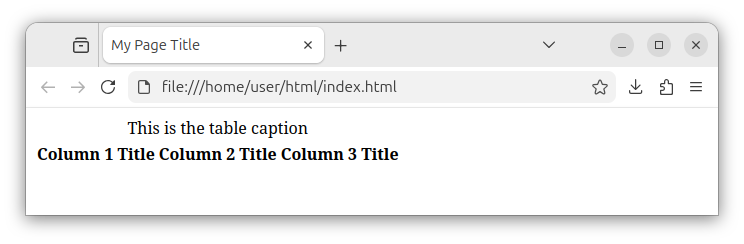
The browser displays the table caption first, followed by the table head content. Inside the table head section, we have a single row of three column header cells.
Table body
The <tbody> element represents the main table section used to store rows of data. The <tbody> section follows after the <caption> and <thead> sections. An example of a table body section that holds one row of regular data cells:
<table>
    <caption>This is the table caption</caption>
    <thead>
        <tr>
            <th scope="col">Column 1 Title</th>
            <th scope="col">Column 2 Title</th>
            <th scope="col">Column 3 Title</th>
        </tr>
    </thead>
    <tbody> <!-- The table body section -->
        <tr>
            <td>Cell 1.1.</td>
            <td>Cell 1.2.</td>
            <td>Cell 1.3.</td>
        </tr>
    </tbody>
</table>
The browser renders the above code as:
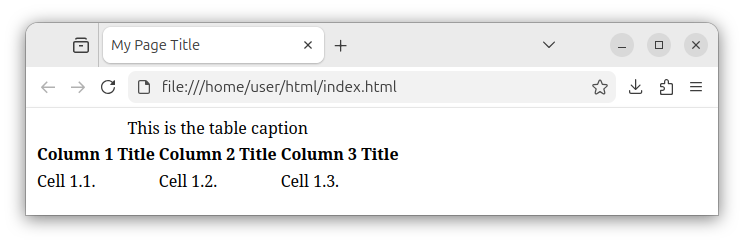
The following is an example of a <tbody> section that stores multiple rows of data, by defining multiple <tr> elements:
<table>
    <caption>This is the table caption</caption>
    <thead>
        <tr>
            <th scope="col">Column 1 Title</th>
            <th scope="col">Column 2 Title</th>
            <th scope="col">Column 3 Title</th>
        </tr>
    </thead>
    <tbody> <!-- The table body section -->
        <tr> <!-- First row -->
            <td>Cell 1.1.</td>
            <td>Cell 1.2.</td>
            <td>Cell 1.3.</td>
        </tr>
        <tr><!-- Second row -->
            <td>Cell 2.1.</td>
            <td>Cell 2.2.</td>
            <td>Cell 2.3.</td>
        </tr>
    </tbody>
</table>
Now, the web page that stores multiple rows of data inside the <tbody> section looks like the following:
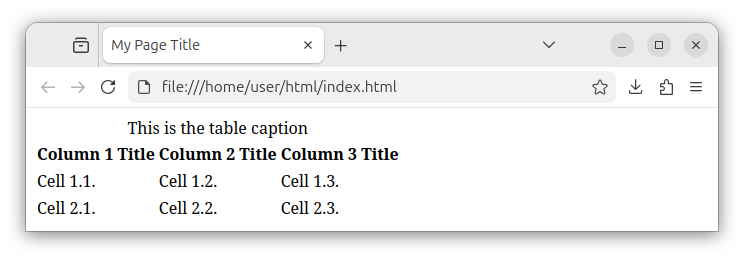
Note: If required, the <tbody> section can also store a combination of data cells and row header cells.
Table footer
The table footer section is represented by a <tfoot> element and usually stores one or more rows of cells that represent some kind of column summary, total values, average values and similar. The table footer section comes after the table body section. Example:
<table>
    <caption>This is the table caption</caption>
    <thead>
        <tr>
            <th scope="col">Column 1 Title</th>
            <th scope="col">Column 2 Title</th>
            <th scope="col">Column 3 Title</th>
        </tr>
    </thead>
    <tbody>
        <tr>
            <td>Cell 1.1.</td>
            <td>Cell 1.2.</td>
            <td>Cell 1.3.</td>
        </tr>
        <tr>
            <td>Cell 2.1.</td>
            <td>Cell 2.2.</td>
            <td>Cell 2.3.</td>
        </tr>
    </tbody>
    <tfoot> <!-- Table footer -->
       <tr>
            <th scope="row" colspan="2">Total:</th>
            <td>Some value</td>
        </tr>
    </tfoot>
</table>
In this example, the table footer section holds a single row of cells, as in the image below:
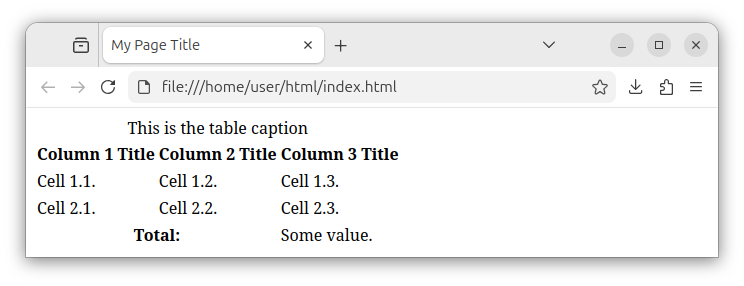
One cell represents a row header and spans two columns, and the other cell, for example, can represent a sum of all the values in the current column.
Summary
The <table> element is an HTML element that displays some tabular data, organized in cells, rows and columns.
Regular data cells, represented through the <td> tag, display data in the table. Header cells, represented through the <th> tag/element, represent the column headers or row headers. Both types of cells are placed inside the table row element, represented through the <tr> tag.
The table can also be divided into several, optional sections in the following order:
- The table caption - the
<caption>element. - The table head - the
<thead>elements - The table body - using the
<tbody>element. - And the table footer, using the
<tfoot>element.


