Sections
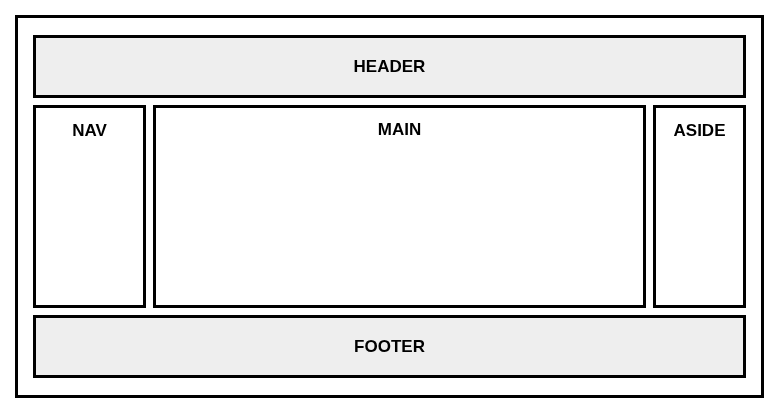
Our web page can be divided into different sections and areas.
For example, on our web page, there can be:
- A header section that can hold a logo and a top navigation bar.
- One or more navigation sections that hold multiple navigation links. These sections can be top navigation bars or left and right sidebars, holding both external and internal links.
- The main content section that holds the main article or articles for each page.
- The aside content section that holds the data that is indirectly related to the main content data.
- The footer section with the company info and quick links.
The following image illustrates one possible page layout with all these different sections:
In modern HTML5-style pages, we can use dedicated, semantic elements to represent these different areas and sections on our page. These elements are:
<header><nav><main><aside><footer>
The <header> element
The <header> element can be used to represent the header section/area of our site - the header section for all pages on our site.
The <header> element as a page header
When used as a top-level element in an HTML page, the <header> element represents the site's header area - a group of elements which make up the beginning of each page. Example:
<!DOCTYPE html>
<html lang="en">

<head>
    <meta charset="UTF-8">
    <meta name="viewport" content="width=device-width, initial-scale=1.0">
    <title>My Page Title</title>
</head>

<body>
    <header>
        <!-- The header content -->
    </header>
</body>

</html>
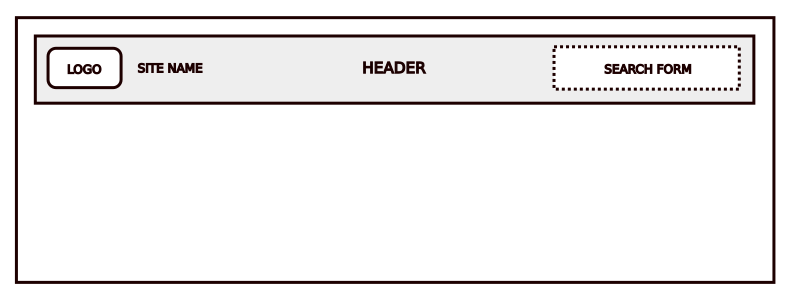
The <header> section can have a site logo, a company name, a search box and similar elements:
Source code example:
<!DOCTYPE html>
<html lang="en">

<head>
    <meta charset="UTF-8">
    <meta name="viewport" content="width=device-width, initial-scale=1.0">
    <title>My Page Title</title>
</head>

<body>
    <header>
        <img src="logo.png" alt="Brand Logo" width="50" height="50">
        <h1>Company Name</h1>
        <!--  Other header content such as the search form -->
    </header>
</body>

</html>
The <header> element holding a top navigation bar
A header section can also hold a top navigation bar with links.
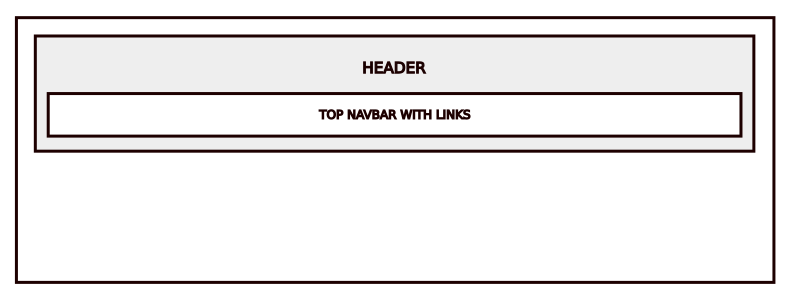
The navigation bar area can be represented using the semantic <nav> element:
<!DOCTYPE html>
<html lang="en">

<head>
    <meta charset="UTF-8">
    <meta name="viewport" content="width=device-width, initial-scale=1.0">
    <title>My Page Title</title>
</head>

<body>
    <header>
        <img src="logo.png" alt="Brand Logo" width="50" height="50">
        <h1>Company Name</h1>
        <nav>
            <ul>
                <li><a href="#">Category Link 1</a></li>
                <li><a href="#">Category Link 2</a></li>
                <li><a href="#">Category Link 3</a></li>
            </ul>
        </nav>
    </header>
</body>

</html>
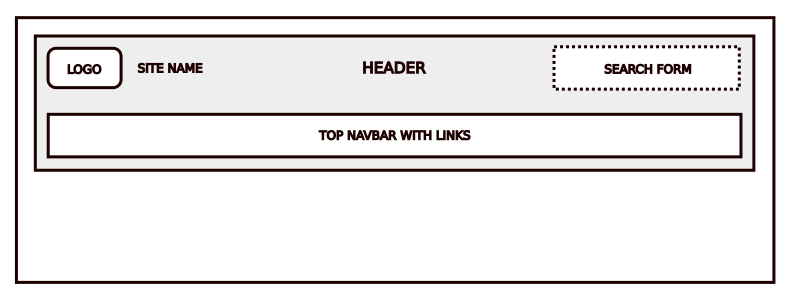
If we include all of the above in our header section, we can visualize the header content as in the following image:
Note: While the <header> element can also be nested inside other elements and areas, most of the time, we simply use it as a top-level, page header area.
The <nav> element
The <nav> element is a semantic element that can be used to mark a section whose content represents navigation content. It represents a group of navigation elements. This navigation content is usually in the form of one or more unordered lists holding list items with links.
The <nav> element as a top navbar wrapper
It can be used to mark a top navigation bar section, in which case, we can place the <nav> element inside the <header> element:
<!DOCTYPE html>
<html lang="en">

<head>
    <meta charset="UTF-8">
    <meta name="viewport" content="width=device-width, initial-scale=1.0">
    <title>My Page Title</title>
</head>

<body>
    <header>
        <!-- Top navigation bar -->
        <nav>
            <ul>
                <li><a href="#">Top Navbar Link 1</a></li>
                <li><a href="#">Top Navbar Link 2</a></li>
                <li><a href="#">Top Navbar Link 3</a></li>
            </ul>
        </nav>
    </header>
</body>

</html>
The <nav> element as a sidebar wrapper
The <nav> element can also be used to mark a left sidebar navigation area that holds another set of links.
<!DOCTYPE html>
<html lang="en">

<head>
    <meta charset="UTF-8">
    <meta name="viewport" content="width=device-width, initial-scale=1.0">
    <title>My Page Title</title>
</head>

<body>
    <header>
        <!-- Top navigation bar -->
        <nav>
            <ul>
                <li><a href="#">Top Navbar Link 1</a></li>
                <li><a href="#">Top Navbar Link 2</a></li>
                <li><a href="#">Top Navbar Link 3</a></li>
            </ul>
        </nav>
    </header>

    <!-- Left sidebar -->
    <nav>
        <ul>
            <li><a href="#">Left Sidebar Link 1</a></li>
            <li><a href="#">Left Sidebar Link 2</a></li>
            <li><a href="#">Left Sidebar Link 3</a></li>
        </ul>
    </nav>
</body>

</html>
Now, our page has two <nav> elements, one that represents the top navigation bar, and one that marks the left sidebar navigation area. Apart from links, the <nav> element can hold other HTML elements as well. Example:
<!-- Left sidebar -->
<nav>
    <h2>Category 1 Links</h2>
    <ul>
        <li><a href="#">Link 1.1.</a></li>
        <li><a href="#">Link 1.2.</a></li>
        <li><a href="#">Link 1.3.</a></li>
    </ul>

    <h2>Category 2 Links</h2>
    <ul>
        <li><a href="#">Link 2.1.</a></li>
        <li><a href="#">Link 2.2.</a></li>
        <li><a href="#">Link 2.3.</a></li>
    </ul>
</nav>
The <nav> element provides semantic meaning for one or more navigation areas on our page, is used by screen readers and increases accessibility.
The <main> element
The <main> element marks the area that holds the main content for each page on our site. This element is placed inside a <body> section, and there should only be one <main> element inside the <body> section. Example:
<!DOCTYPE html>
<html lang="en">

<head>
    <meta charset="UTF-8">
    <meta name="viewport" content="width=device-width, initial-scale=1.0">
    <title>My Page Title</title>
</head>

<body>
    <header>
        <!-- The header content -->
    </header>

    <main>
        <!-- The main content -->
    </main>
</body>

</html>
The <main> element as a wrapper around the main content
The <main> element is a semantic element that wraps the unique, main content on our page. Example:
<!DOCTYPE html>
<html lang="en">

<head>
    <meta charset="UTF-8">
    <meta name="viewport" content="width=device-width, initial-scale=1.0">
    <title>My Page Title</title>
</head>

<body>
    <!-- The header section -->
    <header>
        <!-- The header content -->
    </header>

    <!-- The main page content section -->
    <main>
        <h1>The main article title</h1>
        <p>The main article content.</p>
        <!-- Other elements that are part of the main content -->
    </main>
</body>

</html>
The <main> element marks the area in which we place the primary, main content. The main content can be an article or a post consisting of headings, paragraphs, images and other elements. All of this can be positioned inside the <main> element.
Major navigation areas that are repeating on all pages should not go inside the <main> element. Any such areas that are not part of the main content should be placed outside the <main> area. Example:
<!DOCTYPE html>
<html lang="en">

<head>
    <meta charset="UTF-8">
    <meta name="viewport" content="width=device-width, initial-scale=1.0">
    <title>My Page Title</title>
</head>

<body>
    <header>
        <!-- The header content -->
    </header>

    <nav>
        <!-- Sidebar content -->
    </nav>

    <main>
        <!-- The main content -->
        <h1>The main article title</h1>
        <p>The main article content.</p>
        <!-- Other content that is part of the main content -->
    </main>

</body>

</html>
The <aside> element
The <aside> element marks the area with content which is indirectly related to the main content. Most often, this area acts as a sidebar wrapper or a sidebar content, holding internal links. Example:
<!DOCTYPE html>
<html lang="en">

<head>
    <meta charset="UTF-8">
    <meta name="viewport" content="width=device-width, initial-scale=1.0">
    <title>My Page Title</title>
</head>

<body>
    <header>
        <!-- The header content -->
    </header>

    <main>
        <!-- The main content -->
        <h1 id="title-1">Page Title</h1>
        <h2 id="subtitle-1">Subtitle 1</h2>
        <p>Page content...</p>
        <h2 id="subtitle-2">Subtitle 2</h2>
        <p>Page content...</p>
    </main>

    <!-- The <aside> content -->
    <aside>
        <nav>
            <ul>
                <li><a href="#title-1">Home</a></li>
                <li><a href="#subtitle-1">Subtitle 1</a></li>
                <li><a href="#subtitle-2">Subtitle 2</a></li>
            </ul>
        </nav>
    </aside>

</body>

</html>
Here, the <aside> area represents the right sidebar area, holding a group of internal document links. The links are wrapped inside the <nav> area.
Note: The <aside> element can act as a sidebar wrapper as in our example. Also, if needed, it can be placed inside the <main> area, in case it is closely related to a specific article or a post on a page.
The <footer> element
The <footer> semantic element represents a footer area for a page or a section on a page, depending on where it is nested. Most of the time, we want to use the <footer> element to mark a footer section for a page. This element is usually placed before the closing </body> tag:
<!DOCTYPE html>
<html lang="en">

<head>
    <meta charset="UTF-8">
    <meta name="viewport" content="width=device-width, initial-scale=1.0">
    <title>My Page Title</title>
</head>

<body>
    <header>
        <!-- The header content -->
    </header>
    <nav>
        <!-- Sidebar content -->
    </nav>
    <main>
        <!-- The main content -->
    </main>
    <footer>
        <!-- The footer content -->
    </footer>
</body>

</html>
The footer area usually holds a company or an author name, a copyright statement, and a list of quick links. Example:
<!DOCTYPE html>
<html lang="en">

<head>
    <meta charset="UTF-8">
    <meta name="viewport" content="width=device-width, initial-scale=1.0">
    <title>My Page Title</title>
</head>

<body>
    <header>
        <!-- The header content -->
    </header>
    <nav>
        <!-- Sidebar content -->
    </nav>
    <main>
        <h1>The main article title</h1>
        <p>The main article content.</p>
        <!-- Other content that is part of the main content -->
    </main>
    <footer>
        <h2>Company Name</h2>
        <p>Copyright statement.</p>
        <h2>Quick Links</h2>
        <ul>
            <li><a href="#">Quick Link 1</a></li>
            <li><a href="#">Quick Link 2</a></li>
            <li><a href="#">Quick Link 3</a></li>
        </ul>
    </footer>
</body>

</html>
To provide contact information about the author or the company in the footer, we surround that content with the <address> element which semantically hints that the enclosed content is the contact information. Example:
<footer>
    <address>
        Company's or author's name:<br>
        Sample Name<br>

        Address:<br>
        Sample Address<br>

        Website:<br>
        <a href="#">example.com</a><br>

        Email:<br>
        <a href="mailto:example@example.com">example@example.com</a><br>
    </address>
</footer>
Divs and semantic elements
Instead of using divs to create these sections, as in the following code:
<div id="header">
    <!-- The header content -->
</div>

<div id="navigation">
    <!-- The navigation content -->
</div>

<div id="main">
    <!-- The main content -->
</div>

<div id="footer">
    <!-- The footer content -->
</div>
We should opt for HTML5 semantic elements instead:
<header>
    <!-- The header content -->
</header>

<nav>
    <!-- The navigation content -->
</nav>

<main>
    <!-- The main content -->
</main>

<footer>
    <!-- The footer content -->
</footer>
The <div> element carries no semantic meaning and is simply a container - a wrapper around other elements. To create these areas, we should use HTML5 elements instead, as each of them carries a semantic meaning and an implicit role for its section.
Using both divs and semantic elements
You can, and should, still use <div> when you need them:
- To act as containers for complex layouts
- Or be used by JavaScript
- Or for CSS styling
In those cases, you can nest the semantic, HTML5 elements inside divs:
<div id="header-container">
    <header>
        <!-- The header content -->
    </header>
</div>
Or:
<div id="main-container">
    <main>
        <!-- The main content -->
    </main>
</div>
This way, we utilize the divs for complex layouts, but also provide semantic meaning for header, main and other sections using the HTML5 semantic elements.
Important: HTML5 section elements provide semantic meaning for the area they represent. This meaning is conveyed to search engines, browsers and screen readers.
The section elements can be styled using CSS, but their primary role is not to determine the visual appearance of areas on our page. Their role is to provide a semantic wrapper around important sections that make up the layout of our HTML page.
Summary
In this article, we learned how to use several semantic HTML5 elements to define a layout and different sections on our page. These elements have semantic meaning, carry implicit roles and are also used to improve accessibility. We say that each element both marks a different area on our page and carries a semantic meaning for that area.


