Links
A link is an HTML element that stores the address of a remote or local resource on the web. When we click on a link, the browser navigates to the specified address. A link is represented through an <a> element and a href attribute.
The syntax
The general syntax for a link is:
<a href="https://www.example.com">This is a link text</a>
Explanation
The link starts with an opening anchor tag <a>, which has a href attribute. The href attribute specifies the address - the URL (the path) to a linked resource. After the opening <a> tag, we have a text to be displayed for the hyperlink, and finally, we have a closing anchor tag </a>.
This link points to an external https://www.example.com URL (in our case, a website address). When we click on the link's text, the browser will navigate to the pointed-to website/resource.
Note: The value of the href attribute is the so-called URL or Uniform Resource Locator. A URL is a string that represents a path to some resource on the web.
Web page with a single link
A complete web page that includes a single anchor link to some external website looks like the following:
<!DOCTYPE html>
<html lang="en">
<head>
    <meta charset="UTF-8">
    <meta name="viewport" content="width=device-width, initial-scale=1.0">
    <title>My Page Title</title>
</head>
<body>
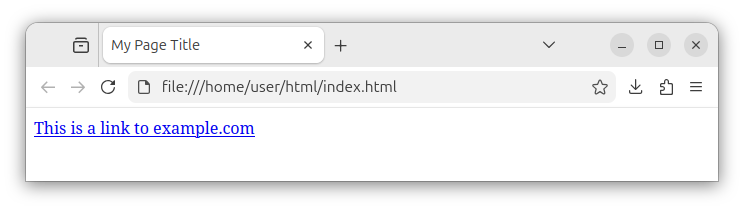
    <a href="https://www.example.com">This is a link to example.com</a>
</body>
</html>
By default, the browser displays a link as blue, underlined text:
Links inside other elements
Links can also be nested inside other HTML elements, such as paragraphs.
<!DOCTYPE html>
<html lang="en">
<head>
    <meta charset="UTF-8">
    <meta name="viewport" content="width=device-width, initial-scale=1.0">
    <title>My Page Title</title>
</head>
<body>
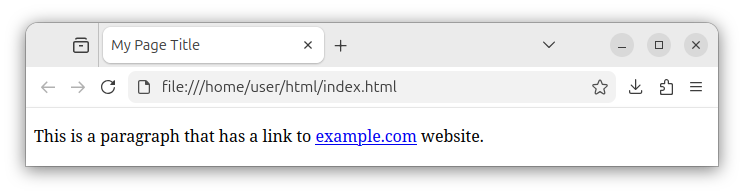
    <p>This is a paragraph that has a link to <a href="https://www.example.com">example.com</a> website.</p>
</body>
</html>
The above code displays a single paragraph which contains a link to some external website.
Links can also be nested inside divs, list items, spans, and other HTML elements.
Other elements as links
We can make other HTML elements such as headings and images into links by placing them inside the <a> element.
Heading as a link
To make the heading element into a link, we place the heading element inside the <a> element:
<a href="https://www.example.com">
    <h1>This heading is a link</h1>
</a>
We say we wrap the heading element with an <a> element.
Image as a link
To make an image into a link, we place the <img> element inside the <a> element:
<a href="https://www.example.com">
    <img src="/images/some-image.png" alt="This image is now a link">
</a>
Now, when we click on the image, the browser will open the specified link address/URL.
Link paths
A link can point to:
- The absolute URL/address.
- An address starting with the site's root directory.
- A relative address:
- A resource in the same directory.
- A resource in a subdirectory.
- A resource in a directory one or more levels up.
- An internal element with a specific ID.
Absolute paths
An absolute path can be a full URL to some resource on the web, such as the website address:
<a href="https://www.example.com">This is an absolute path</a>
The site's root directory
A link can point to a resource where the URL is relative to the site's root directory:
<a href="/downloads/some-file.zip">An absolute path to the file.</a>
The above code specifies a path that starts with the site's root directory. The site's root directory is represented by a forward slash symbol - /.
Note: In production, most of the time, we want to include the site's root directory symbol / in our paths:
/downloads/some-file.zip
/contact.html
/images/some-image.png
Relative paths
In this section we will explain links whose URLs are relative to the position of the referring HTML document.
The same directory
To specify a link with a relative path that points to another document in the same folder, we write:
<a href="contact.html">A link to another resource located in the same directory</a>
The above code links to a contact.html page located in the same directory as our referring HTML document. A referring document is a page that declares/has the link.
The subdirectory
To declare a link that points to a relative address of a resource located in some subdirectory, we write:
<a href="sub-directory-name/some-file.pdf">A resource in a subdirectory</a>
Here, the link's URL starts with a subdirectory name, followed by a resource name. The sub-directory-name directory represents a one-level-down directory and is located in the same main directory as the referring HTML document.
The directory one-level-up
To specify a link whose relative URL points to a resource located in the directory that is one level up relative to the current directory, we write:
<a href="../upper-directory-name/some-file.pdf">A resource in a directory one level up</a>
Here, we used the ../ string to specify that the directory is located one level up relative to the current directory (the referring HTML document's directory). The full path then becomes ../upper-directory-name/some-file.pdf.
To specify a directory that is two levels up, we use the ../../ sequence. The full link then becomes:
<a href="../upper-directory-name/some-file.pdf">A resource in a directory two levels up</a>
A link to the element with an id
HTML elements can have unique id attributes, as in:
<h2 id="section_1">This is the first section title</h2>
To specify a link to an internal element with an ID, we add a hash symbol # to the URL, followed by the value of the id attribute:
<a href="#section_1">A link to the first section</a>
When we click on this link, the browser will scroll down and take us to the part of the current document where an element with an id of section_1 is located.
These sections are also referred to as fragments.
If we want to link to a document fragment located in another HTML document, we specify the document's name, followed by a # symbol and an id value:
<a href="another-document.html#section_1">A link to the first section in another document</a>
In production, you will often see a web page that has multiple titles and subtitles, and each title is assigned a different id value, as in:
<h2 id="section_1">This is the first section title</h2>
<h2 id="section_2">This is the second section title</h2>
<h2 id="section_3">This is a third section title</h2>
This allows us to have a sidebar with multiple links to all these sections:
<a href="#section_1">A link to the first section</a>
<a href="#section_2">A link to the second section</a>
<a href="#section_3">A link to the third section</a>
This allows us to quickly navigate to different sections/fragments inside our HTML document.
Other link attributes
Opening a link in a new tab
The link's target attribute set to the "_blank" value, specifies that the link will be opened in a new browser tab. Example:
<a href="https://www.example.com" target="_blank">This link opens in a new tab.</a>
The title attribute
The link's title attribute specifies a text to be displayed as a tooltip when we hover our mouse over the link. Example:
<a href="https://www.example.com" title="A text that represents more information about the link">This link shows a tooltip</a>
Summary
In summary, the link element <a> is used to represent links to other resources on the web. Links use the href attribute to specify the URL to another website, a document, a file, or a section within a page.


