Specifying the Icon for a Page
We can use the <link> element to specify the icon for our page.
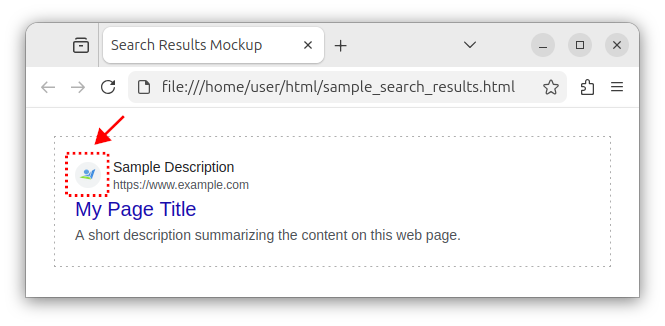
The website's icon can appear in search results:
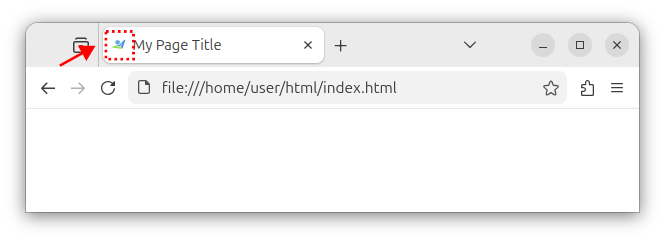
The browser's address bar and tabs:
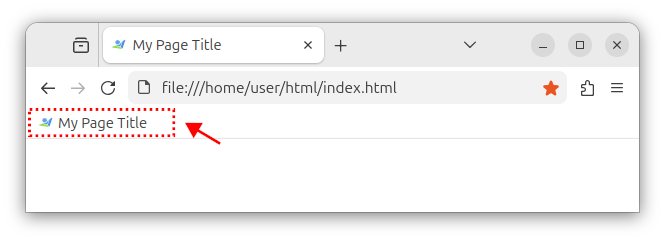
And in saved bookmarks:
The syntax
To set the icon for a web page, we use the <link> element with rel="icon" and href="icon_name.ico" attributes. The icon itself is usually named "favicon.ico", which stands for favorites icon. Other file names are also possible.
The supported file types for our icon include .ico, .gif, .png, and .svg file types.
A simple HTML code snippet that assigns an icon to our web page is:
<link rel="icon" href="/favicon.ico">
The above code assumes the favicon.ico file is placed in the root / folder.
Note: While testing on a local machine, without the web server, use the following HTML snippet, without the / root folder symbol:
<link rel="icon" href="favicon.ico">
If the icon file is placed in a different folder, for example, the images/ folder, then we write:
<link rel="icon" href="/images/favicon.ico">
It is a good idea to include the type attribute when associating the icon with our web page. The type attribute specifies the media type (also known as MIME type) for our resource/icon.
Note: The media type is part of the response being sent to the browser.
For an .ico file, the value for the type attribute is "image/x-icon":
<link rel="icon" href="/favicon.ico" type="image/x-icon">
If the icon file is in the .png format, the media type would be "image/png":
<link rel="icon" href="/favicon.png" type="image/png">
The index.html listing
Building on our previous tutorial, the expanded index.html file looks like the in the following code:
<!DOCTYPE html>
<html lang="en">
<head>
    <meta charset="UTF-8">
    <meta name="viewport" content="width=device-width, initial-scale=1.0">
    <title>My Page Title</title>
    <meta name="description" content="A short description summarizing the content on this web page.">
    <meta name="author" content="Sample Name">
    <link rel="icon" href="/favicon.ico" type="image/x-icon">
</head>
<body>

</body>
</html>
Specifying the icon for Apple devices
To specify an icon that looks good when saved on Apple devices, we can include an additional <link> element with a rel="apple-touch-icon" attribute:
<link rel="apple-touch-icon" href="/apple-touch-icon.png" type="image/png">
We can also include multiple touch favicons with different sizes by utilizing the sizes attribute with the "[width]x[height]" values:
<link rel="apple-touch-icon" sizes="152x152" href="/apple-touch-icon-152x152.png" type="image/png">
<link rel="apple-touch-icon" sizes="167x167" href="/apple-touch-icon-167x167.png" type="image/png">
<link rel="apple-touch-icon" sizes="180x180" href="/apple-touch-icon-180x180.png" type="image/png">
The updated index.html file
Now, our more complete index.html file looks like the following code:
<!DOCTYPE html>
<html lang="en">
<head>
    <meta charset="UTF-8">
    <meta name="viewport" content="width=device-width, initial-scale=1.0">
    <title>My Page Title</title>
    <meta name="description" content="A short description summarizing the content on this web page.">
    <meta name="author" content="Sample Name">
    <link rel="apple-touch-icon" sizes="152x152" href="/apple-touch-icon-152x152.png" type="image/png">
    <link rel="apple-touch-icon" sizes="167x167" href="/apple-touch-icon-167x167.png" type="image/png">
    <link rel="apple-touch-icon" sizes="180x180" href="/apple-touch-icon-180x180.png" type="image/png">
    <link rel="icon" href="/favicon.ico" type="image/x-icon">
</head>
<body>

</body>
</html>
This version specifies multiple touch icons for use with different Apple devices. Depending on the device, the appropriate .png file will be chosen if the page is added to the home screen.
If the page is viewed on another machine that is not an Apple device, the .ico file will be used as a default icon for our web page.
The terminology used
The <link> element specifies the relationship between our HTML document and an external resource-in this case, the external icon file.
The rel attribute, which is short for relationship, determines the type of relationship, in our case the icon relationship type.
The href attribute, which stands for Hypertext Reference, specifies the address (the URL) of the external resource.


