Deploying a Laravel App to a Shared Hosting
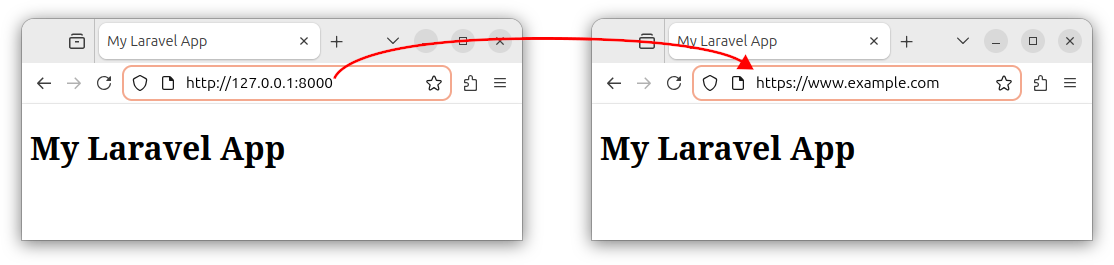
In this tutorial, we will explain how to deploy a Laravel application to a remote production server, also referred to as the shared web hosting account, or simply shared hosting.
Prerequisites
- You have developed the Laravel app on your local machine.
- You have registered the domain name and purchased a web hosting account.
- You can log in to your hosting account's control panel.
- Ideally, your web hosting provider supports the following:
- SSH access to a remote server.
- GIT
- Composer software on a remote server.
- PHP
- A database engine/server, for example, the MySQL database.
We will be using a web hosting provider, called ICDSoft, to demonstrate how to deploy a Laravel application to a remote host (shared web hosting account). The deployment process should be similar for other web hosting providers as well.
Deployment Overview
The following is an overview of the deployment steps.
- We enable SSH access and connect to a remote server/shell using SSH:
ssh username@your-host.com - Create local and remote GIT repositories and use GIT to transfer (push) the files and folders from a local machine to a remote server.
- Set the website's root to the app's
public/folder. - Change the remote server's PHP version to (at least) 8.3.
- Use Composer to install the Laravel framework and dependencies on a remote server:
composer install --no-dev - Create the
.envfile using the.env.examplefile as a blueprint:cp .env.example .env - Edit the
.envfile and set the required fields. - Generate the app key:
php artisan key:generate - Create the database.
- Run the database migration:
php artisan migrate - Cache the files on a server:
php artisan optimize
We will explain each step in greater detail in the following sections.
Enabling SSH access
This section describes how to enable SSH (Secure Shell) access and generate the private/public SSH keys.
In the ICDSoft's control panel, navigate to the Security - SSH Access section, and set the SSH access status option to Enabled:
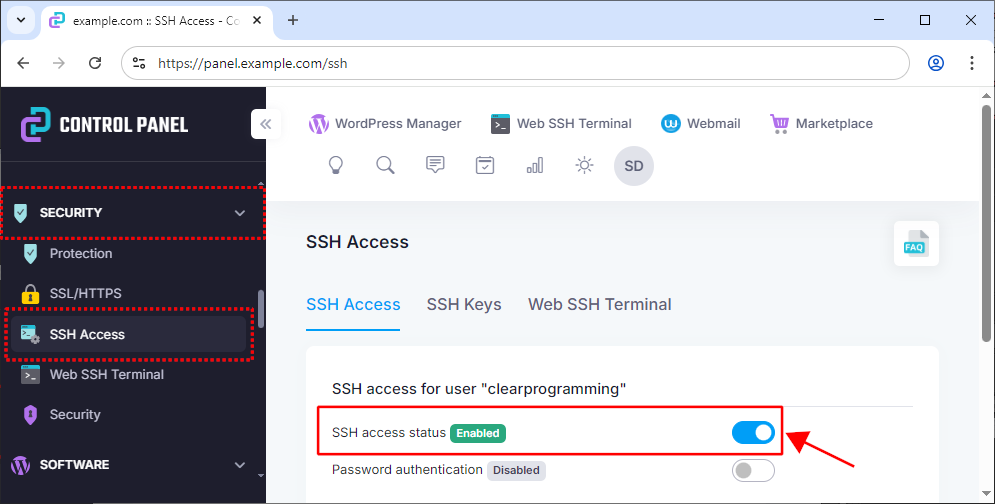
If using another web hosting provider's services and control panel, look for the SSH section and enable the SSH Access.
SSH keys
Now, we need to create the private/public keys pair. These two files (also referred to as SSH key pairs) are used for SSH authentication.
- The private key file, usually named as
id_ed25519, orid_rsa, goes to the specific directory on the local machine, usually to the/home/user/.ssh/or.ssh/folders. - The public key file, usually named as
id_ed25519.puborid_rsa.pub, gets appended to the lists of authorized keys on the remote server.
Other key file names are also possible.
Generating SSH keys in the hosting control panel
In ICDSoft's control panel, we navigate to the Security - SSH Access section, click on the SSH Keys tab, and click the Generate button:
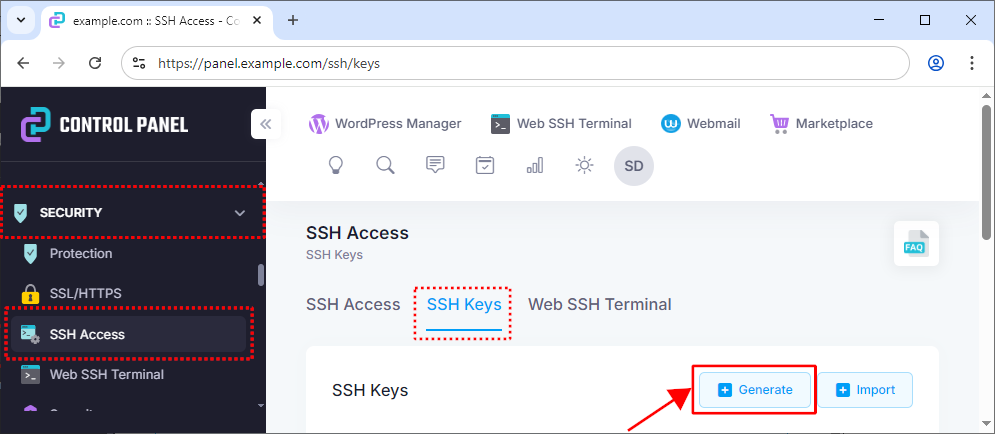
If using another web hosting provider, look for the SSH section inside your hosting control panel and choose the Create SSH keys or similarly named option.
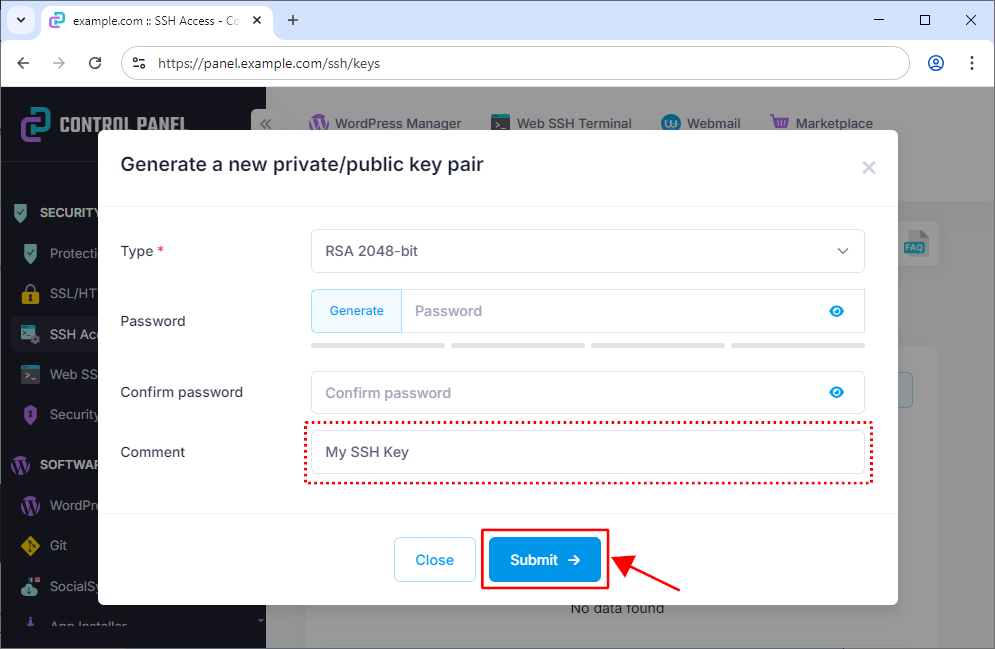
The server will generate the private/public key pair. Optionally, we enter a comment that describes a key. We can opt for the RSA 2048-bit option and click Submit:
The server generates both the public and the private key files and offers us the option of downloading the private key file. Download the private key file:
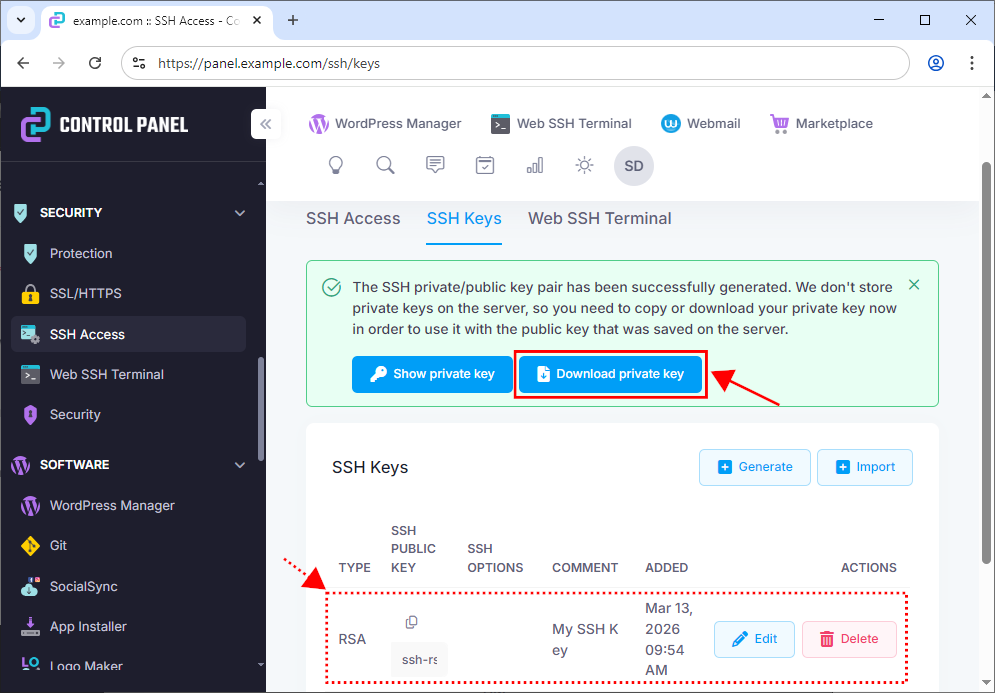
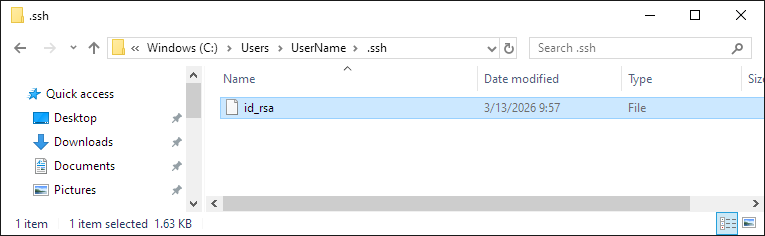
Rename the downloaded private_key.txt file to id_rsa and place it in the .ssh/ folder on a local machine. If there is no .ssh/ folder on a local machine we need to create one.
On Linux, we write:
mkdir ~/.ssh #create the .ssh/ folder (if there isn't one already)
cd ~/Downloads # enter the Downloads/ folder
mv private_key.txt id_rsa # rename the downloaded private key to id_rsa
mv id_rsa ~/.ssh/ # move the file to the .ssh/ folder
chmod 700 ~/.ssh # change the .ssh/ directory permissions
chmod 600 ~/.ssh/id_rsa # change the id_rsa file permissions
On Windows, open the Command Prompt as an Administrator, navigate to the C:\Users\<YourUsername>\ folder, and create a .ssh/ folder there:
cd C:\Users\<YourUsername>\
mkdir .ssh
Replace <YourUsername> with the actual username on Windows.
Rename the downloaded private_key.txt private key file to id_rsa and move it to the cd C:\Users\<YourUsername>\.ssh\ folder.
Generating SSH keys locally
Alternatively, generate the private/public keys on your local machine:
ssh-keygen
And press Enter three times to go with the default options and no password.
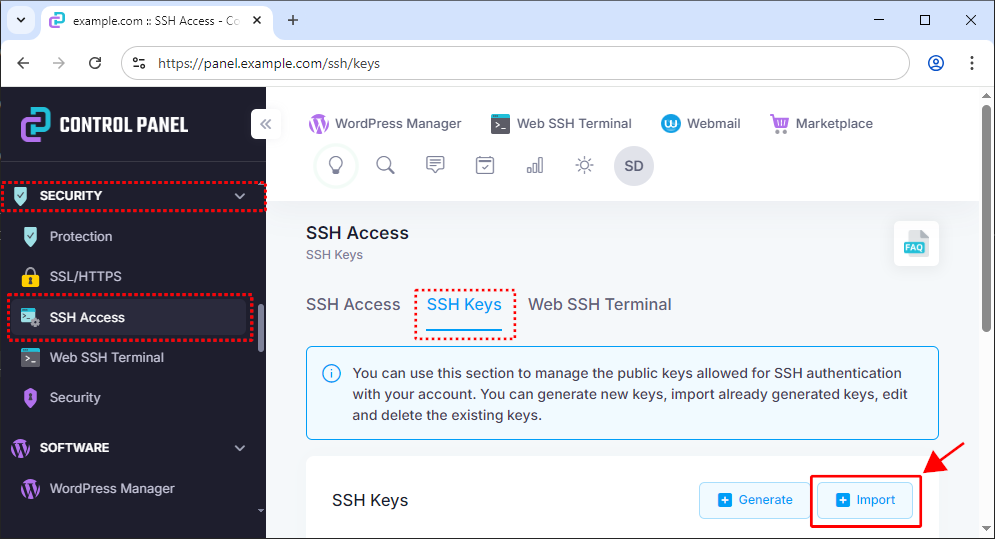
This command generates the private id_ed25519 and public id_ed25519.pub files and places them in the .ssh/ folder. In the web hosting control panel, navigate to the Security - SSH Access - SSH Keys and choose the Import option:
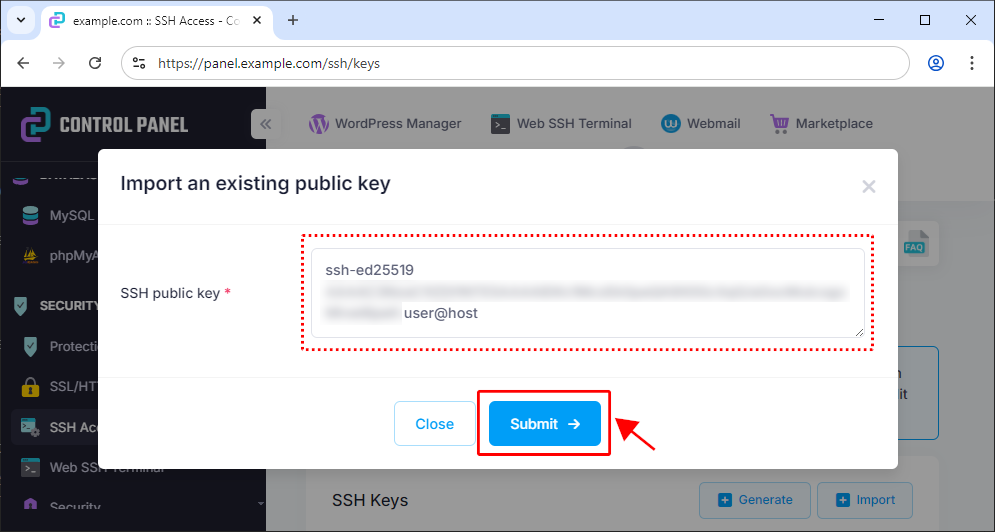
Paste the contents of the ~/.ssh/id_ed25519.pub file and click Submit:
The imported public key is now listed as one of our authorized keys:
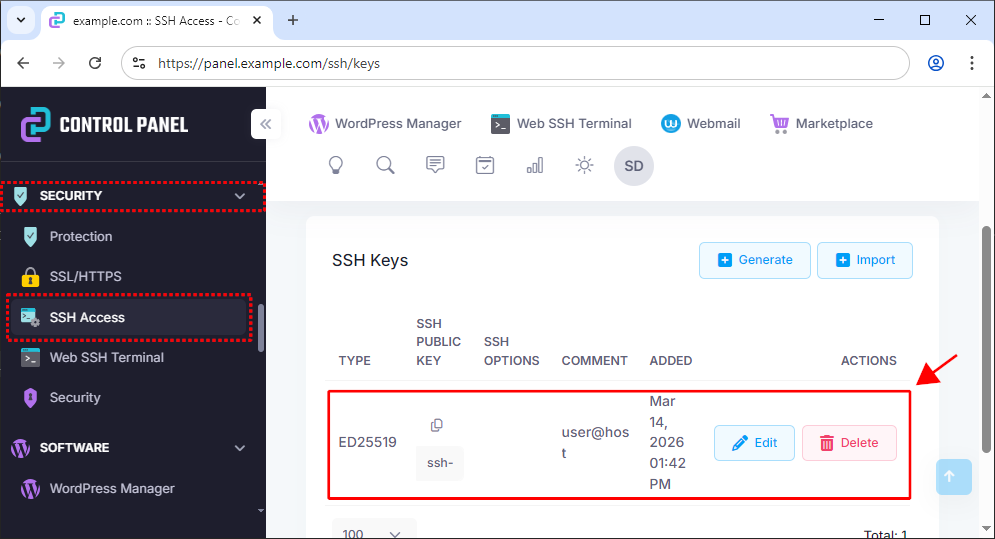
And we can now log in to a remote SSH session using the newly created SSH key pair.
Using SSH to connect to a remote server
To connect to a remote server through the SSH protocol, on our local machine, we execute the following command in the terminal:
ssh username@example.com
Replace username with your actual hosting account username and replace example.com with the actual server's name.
This command logs you into a remote server shell where your live website is hosted. When logging in for the first time, you will see a confirmation dialog. Type yes and press Enter.
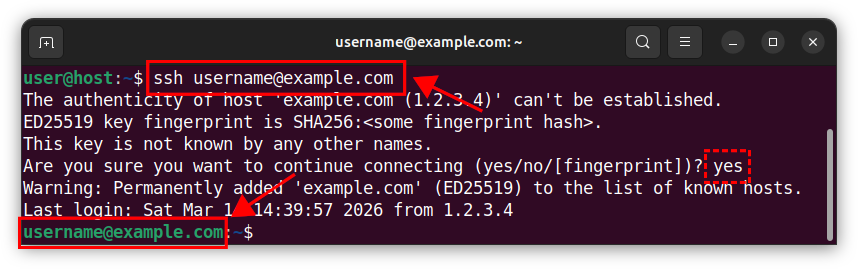
We are now logged in to a remote shell.
To log out of the remote server's shell session, type logout or exit and press Enter:

Folders on the remote server
Log in to a remote SSH shell and execute the ls command on the remote server:
ssh username@example.com
ls
The ls command lists all the files and folders. Among other folders, you should see two distinct folders, named as private and www.
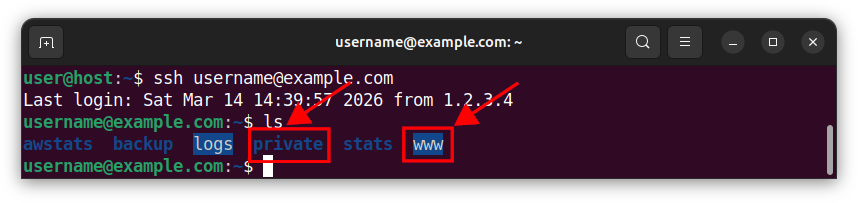
These folders are also accessible in the control panel through the Files - File Manager option:
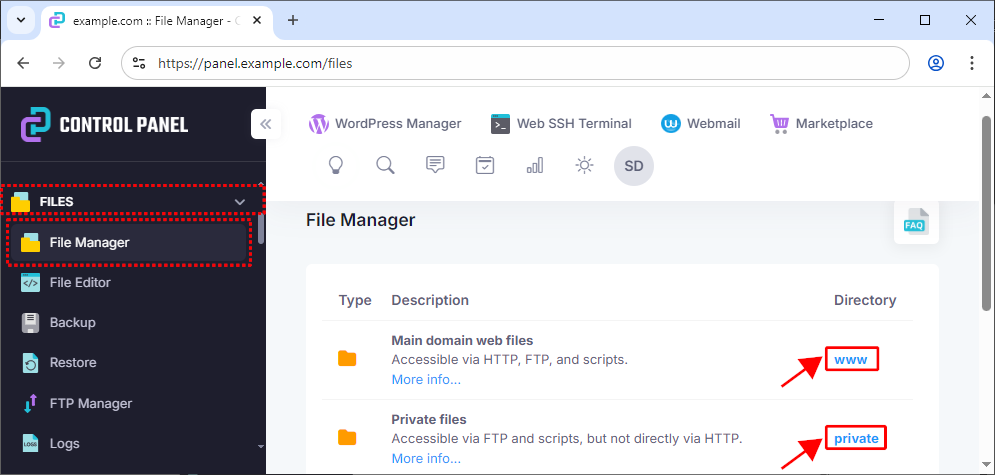
The private/ folder is not publicly accessible and is used to store private files, such as our GIT repository. This folder is usually only accessible through a script, an SSH tunnel or a web hosting control panel. The full path to the private/ folder is /home/username/private.
The www/www/ folder on our hosting server represents the root of our website. This folder will be used to store our Laravel app's files and folders. The full path to the www/www/ folder is /home/username/www/www. The www/www/ folder's content is currently publicly accessible to everyone, so we should be very careful not to put any sensitive data there. We will change this setting later and point the website's root to another folder.
Note: Other web hosting companies may name this folder public_html, public, www and similar. The actual folder names can vary across different hosting providers.
Creating GIT repositories
In this section, we will learn how to create local and remote GIT repositories.
Creating a remote GIT repository
Create the remote GIT repository inside the private/ folder on your remote server. Log in to a remote terminal via SSH:
ssh username@example.com
Execute the following commands on the server:
cd ~/private
mkdir mywebsite.git
cd mywebsite.git
git --bare init
This code initializes an empty GIT repository on the remote server inside the private/mywebsite.git/ folder. We will be using the production name as our remote GIT repository name.
Note: With other hosting providers, the remote GIT repository may be referred to as origin.
Next, we will create a post-receive hook - a script on the remote server that runs when we push the changes from a local repository to a remote repository.
nano hooks/post-receive
Using nano, add the following code to the post-receive file:
#!/bin/sh
GIT_WORK_TREE=/home/username/www/www git checkout -f
Replace /home/username/www/www with your public folder full path.
Save the file by pressing the Ctrl + S and exit the nano editor by pressing Ctrl + X. The above code writes/places the app's checked out files to a public www/www/ folder after each push to a remote server.
Give the hooks/post-receive file executable permissions:
chmod +x hooks/post-receive
Exit the SSH shell:
logout
Creating a local GIT repository
To install the GIT software on a local Linux machine, execute the following command in the terminal:
sudo apt install git
On Windows, we download and execute the GIT installer.
To create a local GIT repository, navigate to your Laravel app's folder:
cd my-laravel-app
Replace my-laravel-app with your Laravel project's folder name.
Initialize a new local GIT repository and add all files in the current folder:
git init
git add .
Configure the email and the username for the GIT account:
git config user.email "your-email@example.com"
git config user.name "Your Name"
Commit the changes:
git commit -m "My first commit"
And add the remote GIT repository:
git remote add production username@example.com:/home/username/private/mywebsite.git
Finally, push the changes to a remote repository:
git push production master
In summary, we make changes to files and folders on the development machine and use the version control software (such as GIT) to transfer files from a development machine to a live server.
Setting the website's root
Currently, our website's document root is the www/www folder on a server (other hosting providers may name this folder as public_html/, www/, and similar). All our Laravel app files and folders are located in this folder. Now, we need to change the website's root to the www/www/public/ folder, to the Laravel app's public/ folder. Using the control panel, navigate to the Domains - Subdomains section, and click on the Edit button:
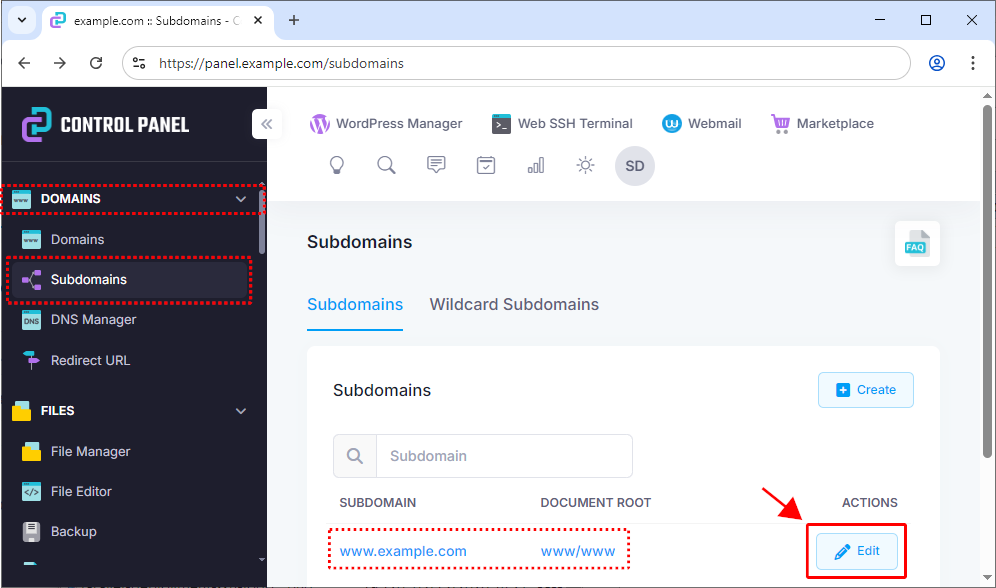
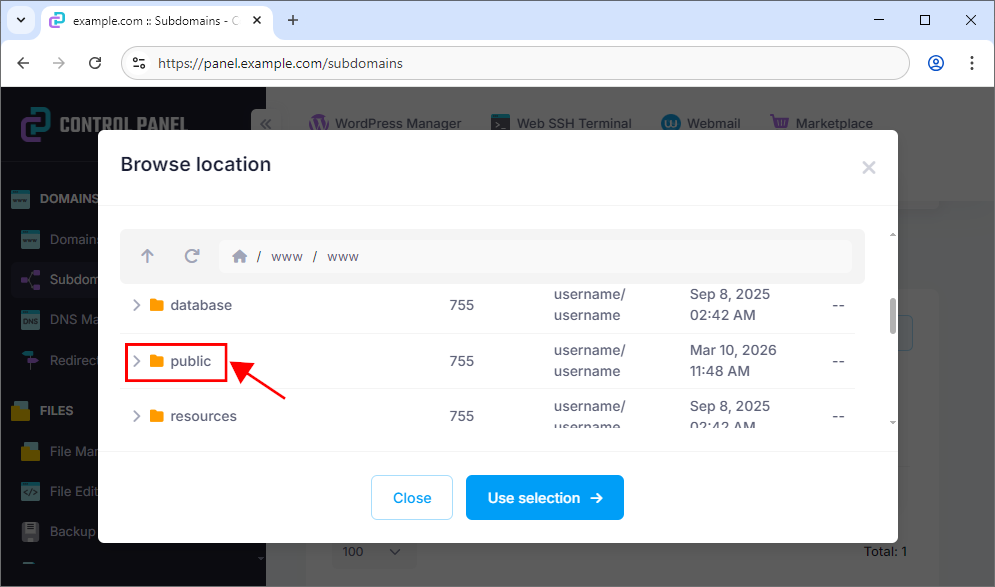
In the next dialog, select the app's public/ folder.
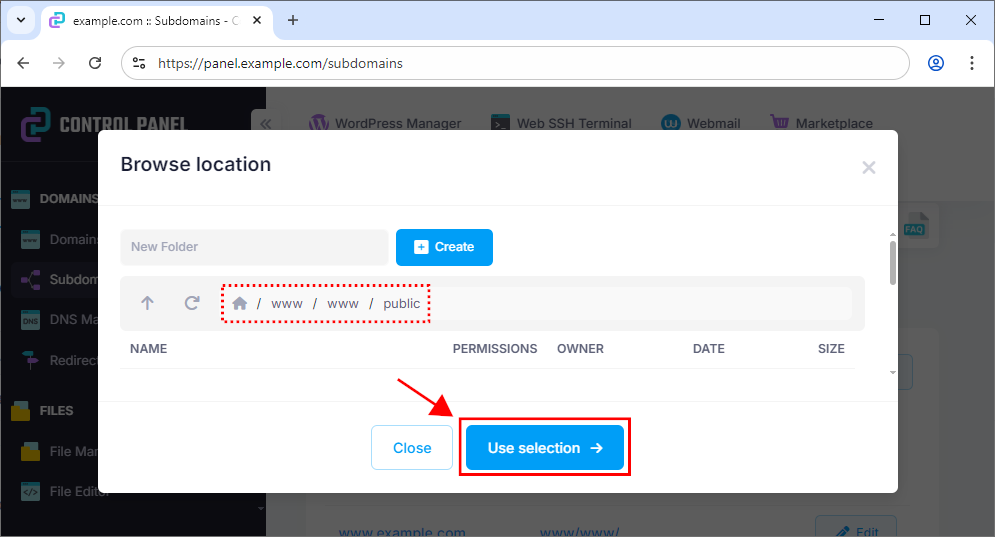
And click on the Use selection button:
Now, our main website has a new/custom document root which is the www/www/public folder (the app's /public folder).
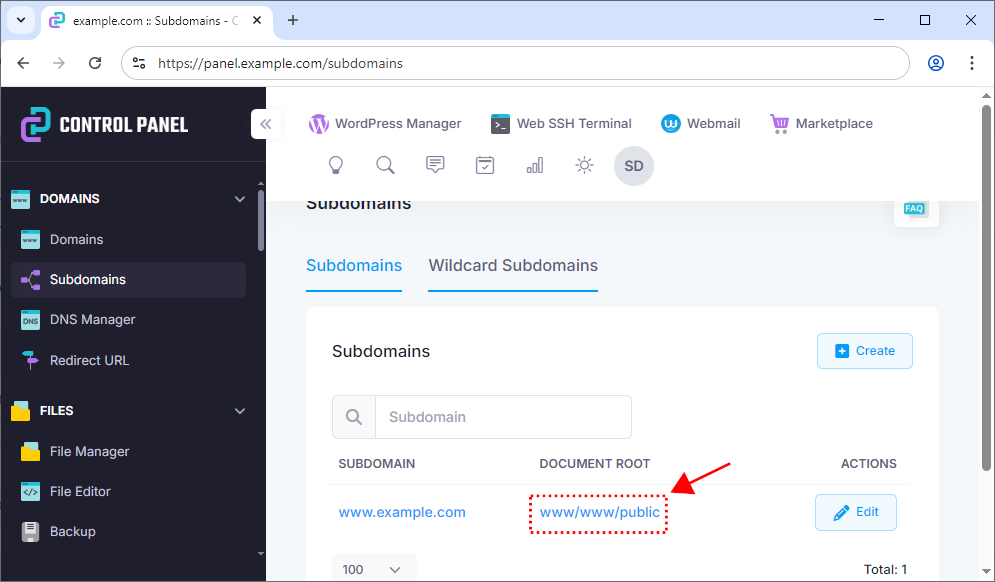
This way, the entire website is served from this folder. Only the files inside our Laravel app's public/ folder are publicly accessible to everyone and all other app's files and folders are inaccessible/invisible to visitors.
Setting the PHP version
Enable at least the PHP 8.3 version on the server. In ICDSoft's web hosting control panel, this option is available at the System - PHP Settings section.
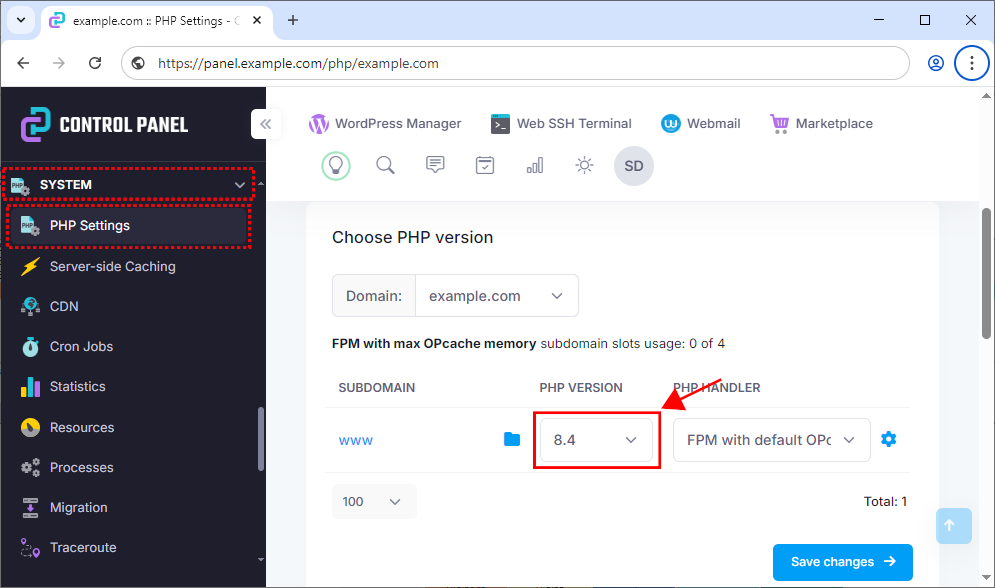
Also, set the PHP command-line interface version to at least 8.3:
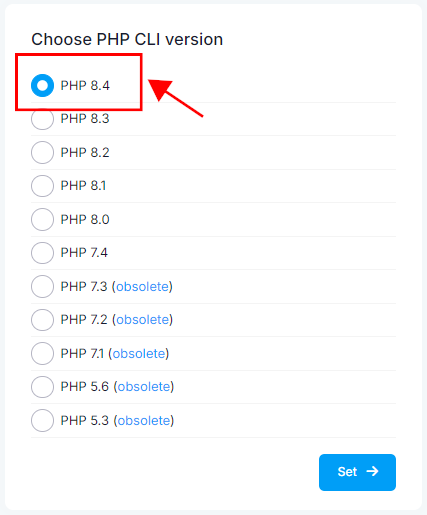
With other web hosting companies, these options are generally available under the "PHP Settings" or similarly named section in their control panel.
Installing the framework on the server
Once the files have been transferred using GIT, log in to a remote shell, and navigate to the www/www/ folder:
ssh username@example.com
cd ~/www/www
Install the Laravel framework and its dependencies using the Composer software on the remote host:
composer install --no-dev
Generating the app's key
Generate the app key on the server:
php artisan key:generate
Creating and editing the .env file
The .env is not submitted to the source control, so we need to create the .env file manually on the server using the .env.example file as a template:
cp .env.example .env
Edit the .env file (on the remote server), and set the important fields:
APP_ENV=production
APP_DEBUG=false
APP_URL=https://www.example.com

DB_CONNECTION=mysql
DB_HOST=127.0.0.1
DB_PORT=3308
DB_DATABASE=your_db_name
DB_USERNAME=your_db_username
DB_PASSWORD=your_db_password
The file can be edited in the control panel by going to the Files - File Manager section and clicking on the .env file.
Or through a SSH connection using a nano editor on the remote server:
ssh username@example.com
cd ~/www/www
nano .env
Setting up a database
Using the control panel's Databases - MySQL Database section, create an empty database:
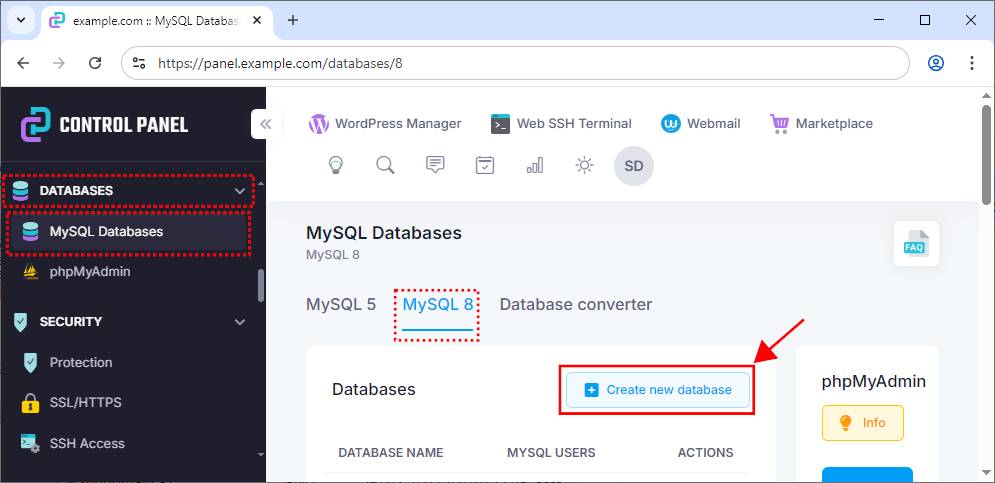
Set the database name and MySQL user, and click Create:
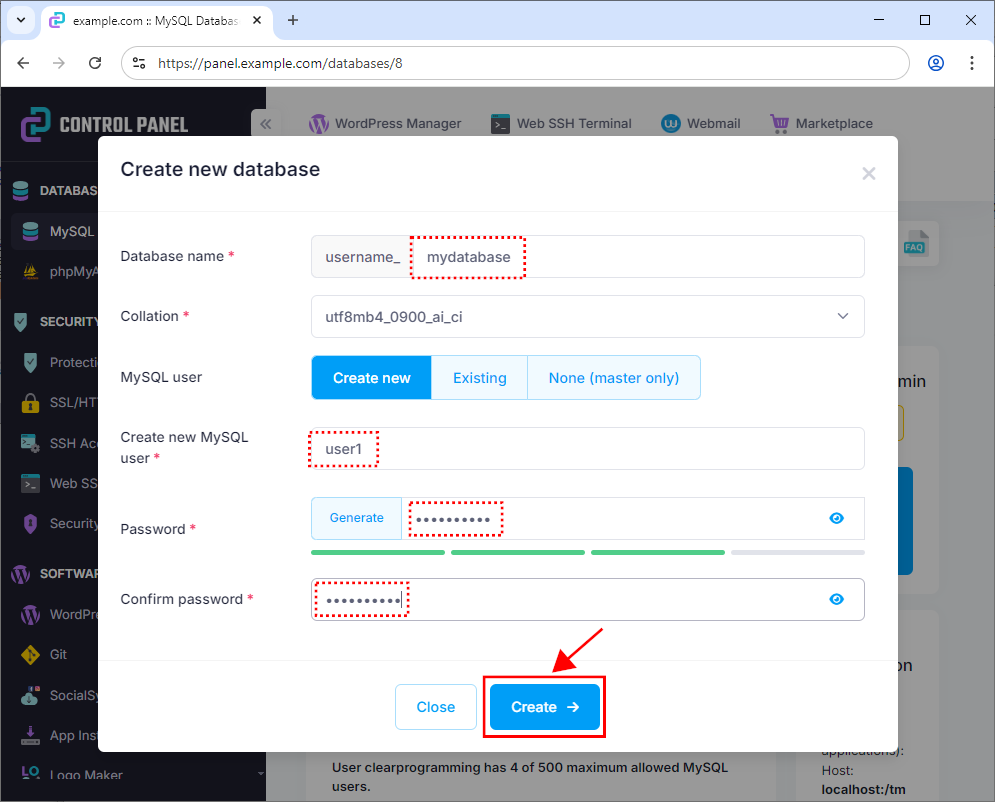
Then, using SSH access, run the database migrations on the server:
php artisan migrate
Important: make sure you are inside the www/www/ folder before running any of the php artisan commands.
Caching
Optionally, improve performance by caching the app's files, routes, and views on the server with the following command:
php artisan optimize
Our website now displays the live Laravel app.
Summary
In this article, we learned how to deploy a Laravel app to a shared hosting account. From this point on, we modify the app's files on a local machine and push the changes to a remote GIT repository. The changes are immediately visible on the live website.
Important deployment steps are:
- Transfer files and folders using GIT.
- Install the Laravel framework and dependencies using
Composer. - Set the website's root to the app's
public/folder. - Create and edit the
.envfile. - Create a database and run database migrations.
- Create an app key.
- Cache the files, routes and views.


