HTML Hello World Example in Laravel
In our previous tutorial, we explained how to return and display a simple Hello World string using Laravel.
In this tutorial, we will learn how to use templates to display a simple HTML code/page in our Laravel app.
MVC Overview
Laravel relies on the so-called Model-View-Controller (MVC) architecture to represent, display and retrieve data. Models represent data and relationships between tables. Views represent the HTML code to be rendered. And controllers control how the data from Models is displayed in Views.
Views/templates in Laravel
The views in Laravel are represented through a template engine called Blade templates. Blade templates are PHP files stored in the resources/views folder. Blade templates have the .blade.php extension. These templates are often simply referred to as views. We place our HTML code inside a Blade template file and then use that template to render the final HTML output.
Creating Blade templates
There are two ways to create a template file.
1. Manually creating a template
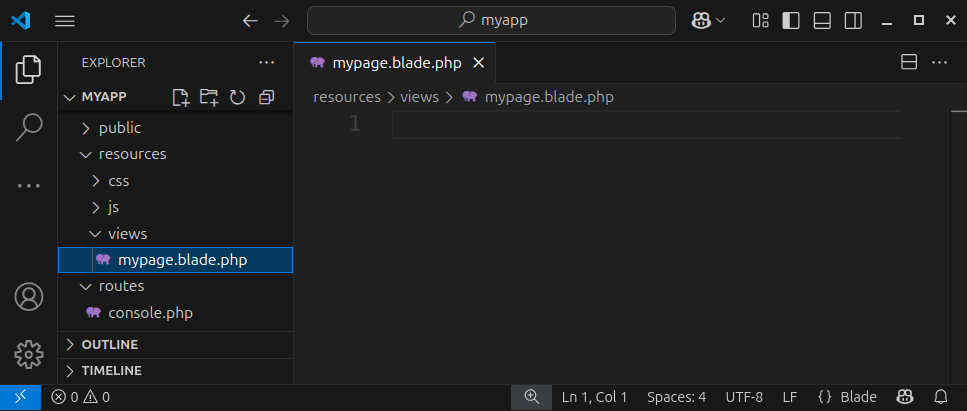
We can manually create an empty template file, called, for example, mypage.blade.php, and place it inside the resources/viewS folder.
2. Using the php artisan tool to create a template
Another way of creating a Blade template file is by using the php artisan command-line tool from the terminal. Inside a terminal, we write:
php artisan make:view mypageThis command will create an mypage.blade.php file (template) and place it in the resources/view folder.
Open the mypage.blade.php file, paste a simple HTML code, and save the file:
<!DOCTYPE html>
<html lang="en">

<head>
    <meta charset="UTF-8">
    <meta name="viewport" content="width=device-width, initial-scale=1.0">
    <title>Hello World in Laravel</title>
</head>

<body>
    <h1>Hello World in Laravel</h1>
    <p>This is an HTML Hello World example in Laravel.</p>
</body>

</html>
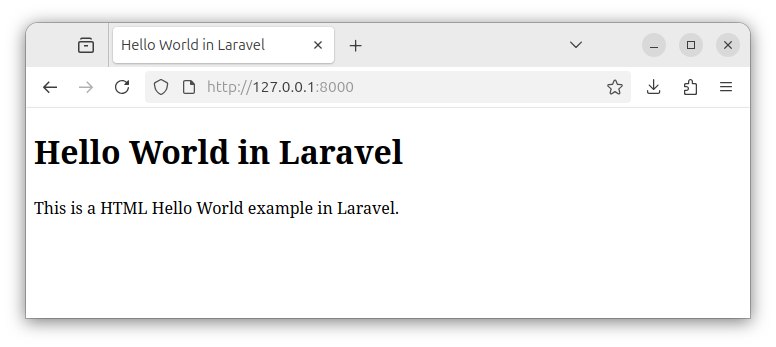
This simple HTML code contains a H1 heading and a paragraph.
To render this HTML in our browser, we return a view containing the template file's HTML content using the view() helper function. The view() function accepts a template file name, without the .blade.php extension as a parameter. Inside our web.php file, we add the following code:
Route::get('/', function () {
    return view('mypage');
});
The entire content of our web.php file now looks like the following:
<?php

use Illuminate\Support\Facades\Route; // import the Route facade

Route::get('/', function () { // define a base route
    return view('mypage'); // return a view that renders the HTML code from a mypage.blade.php file
});
Now, when we enter the root URL in our browser, the server will generate a response containing the HTML code from our template file and the browser renders the HTML page.
Note: When we first created our Laravel application, the Laravel installer created a Blade template file called welcome.blade.php and returned that view to the main route. We can safely delete that template file and use our own.
Summary
In this article, we learned how to use template files to display/render the HTML code in our Laravel app. We used the view helper function to retrieve and render an HTML page that originates from the Blade template file.
For now, it is important to get familiar with placing the HTML code in templates and returning the template's content through the view helper function to a certain route. In later chapters, we will explain how to: pass variables to views, create variable placeholders in views, retrieve data from a database and work with sub-templates.
In our next chapter we will go through several exercises to practice the learned material.


